Kling Image 4.0 portrait of a woman tossing golden leaves in a sunlit autumn park

Create Detailed AI Images with Kling Image 4.0 for Free

Have a scene in mind? Bring it to life with the Kling Image 4.0 AI image generator. Generate photos at up to 8K, lay out a whole page as one long graphic, or make a matching image set. Ideal for ecommerce product pages, event guides, and comic panels.

Generate an Image
  • Free Credits for Everyday Use
  • Fast, Realistic Results
  • Works in Your Browser

Try Kling Image 4.0 Online

Result

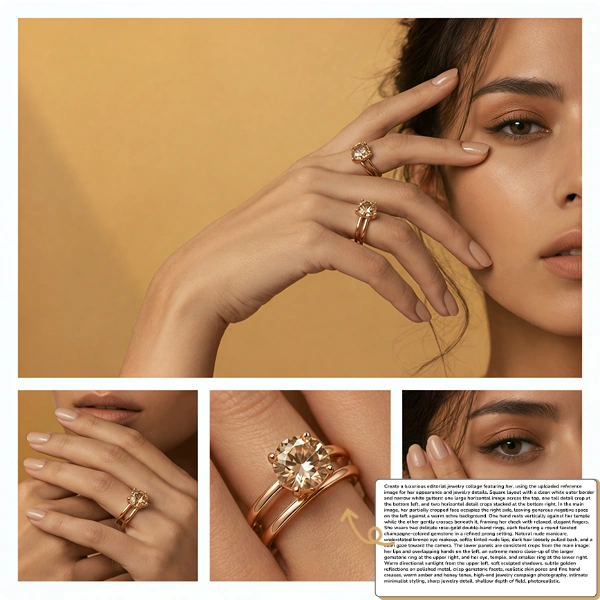
AI image generator preview showing a gold jewelry campaign with portrait and detail shots

Kling Image 4.0 Use Cases

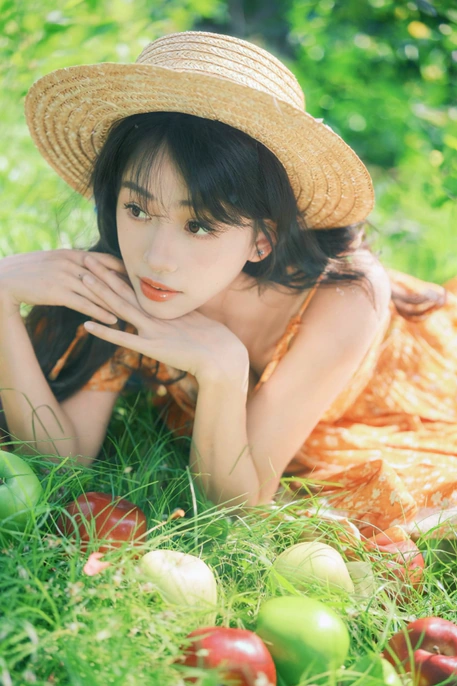
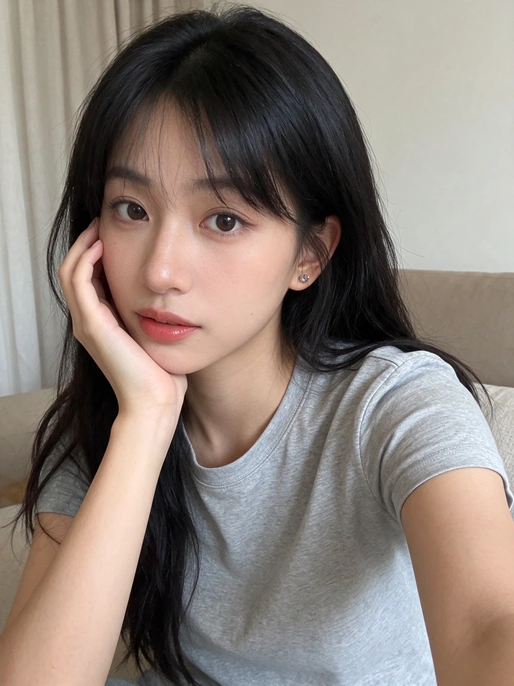
Turn Everyday Photos into Studio-Quality Portraits

Upload a selfie or casual photo and let Kling Image 4.0 turn it into a polished portrait without a photo shoot. Use it for social posts, profile pictures, or other creative projects.

View prompt

Use the uploaded image as the identity reference, preserving the young East Asian woman’s exact facial features and realistic skin texture. Create a dreamy summer outdoor portrait of her lying on her stomach on sunlit grass in an orchard, elbows resting on the ground, hands gently overlapping beneath her chin, gazing directly at the camera with a calm, soft expression. She wears a flowing orange floral spaghetti-strap dress and a wide-brimmed woven straw hat. Scatter red and green apples across the foreground grass. Bright green foliage, dappled sunlight, softly blurred orchard background, warm pastel tones, subtle film grain, romantic and fresh editorial portrait photography, 85mm lens, shallow depth of field, natural daylight, high-resolution photorealism.
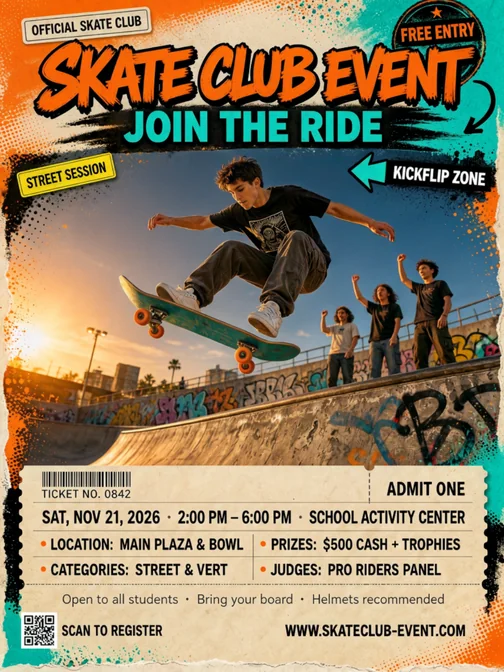
Generate a Custom Poster from a Prompt

Describe the poster you want and include the wording you’d like it to display. AI renders the text and arranges it alongside the visuals in a clear layout, so you don’t have to design or position each element by hand.

View prompt

Create a bold, energetic event poster for a skateboard club, vertical 3:4 poster layout, street culture aesthetic. Dynamic low-angle photo of a skateboarder mid-air doing a kickflip in an urban skatepark at golden hour, motion blur, graffiti wall, concrete ledges, friends cheering in the background. Vibrant color palette: electric orange, cyan, black and off-white. Distressed textures, halftone dots, spray-paint strokes, sticker graphics, bold graffiti-style typography. Main headline: “SKATE CLUB EVENT” large and highly readable; subheadline: “JOIN THE RIDE”; event details in clean bold sans-serif: “SAT, NOV 21, 2026 · 2:00 PM – 6:00 PM · SCHOOL ACTIVITY CENTER”; small text: “Open to all students · Bring your board · Helmets recommended”. Include a skateboard icon, directional arrows, ticket-style info block, and a QR code placeholder. High contrast, professional poster design, print-ready, 4K, sharp details, clear legible text, strong visual hierarchy.

Style Your Product Shots for Any Campaign

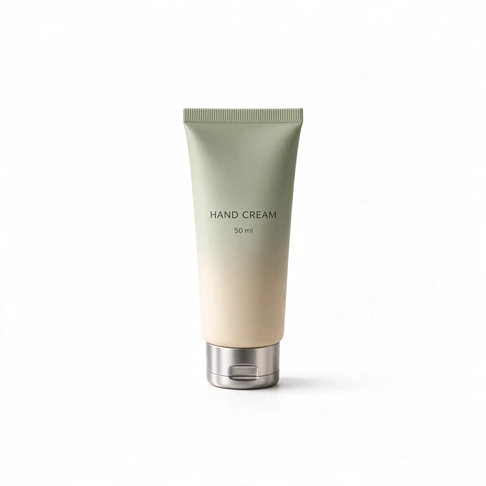
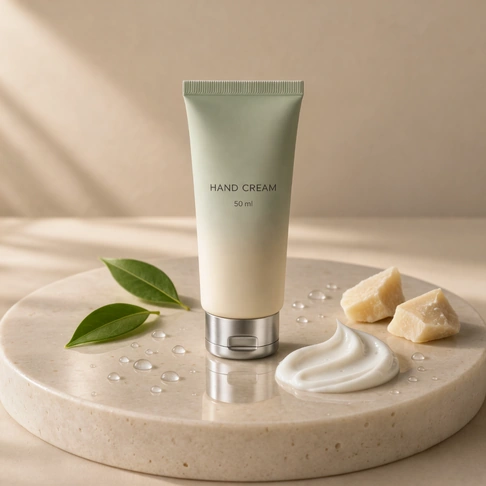
Give a simple product snapshot a polished look with Kling Image 4.0. Picture a tube of hand cream on sunlit stone for your product page, peeking out of a makeup bag for an ecommerce listing, or nestled in a gift box for a holiday ad.

View prompt

Use the uploaded image as the product identity reference. Preserve the hand cream tube exactly: sage-green-to-cream gradient packaging, accurate proportions, crimped seal, brushed silver flip-top cap, and centered “HAND CREAM” and “50 ml” labels with identical typography and layout. Do not redesign the product, labels, or packaging colors. Recreate the premium skincare advertising scene from the second image: the tube stands upright at the center of a round beige travertine pedestal against a warm beige seamless background. Soft morning light enters diagonally from the upper left, casting delicate leaf shadows. Place two fresh green leaves on the left, two pale pieces of shea butter at the rear right, and a smooth, glossy smear of white hand cream on the stone at the front right. Scatter clear water droplets across the stone surface, with a subtle reflection beneath the silver cap. Soft natural shadows, warm neutral tones, luxurious organic skincare aesthetic, realistic materials, sharp product focus, shallow depth of field, hyperrealistic, clean and elegant.

Create a Storyboard with Consistent Characters

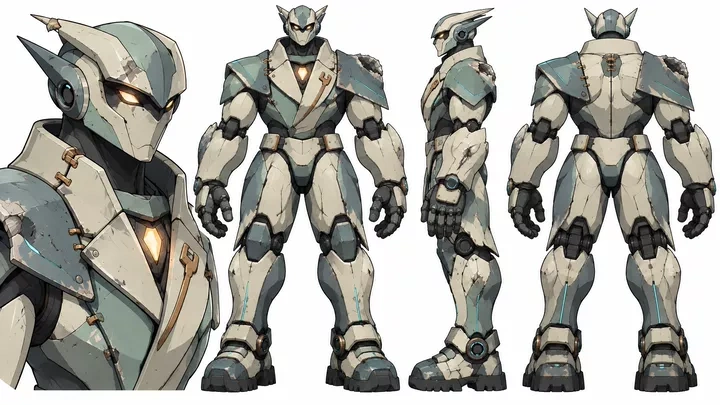
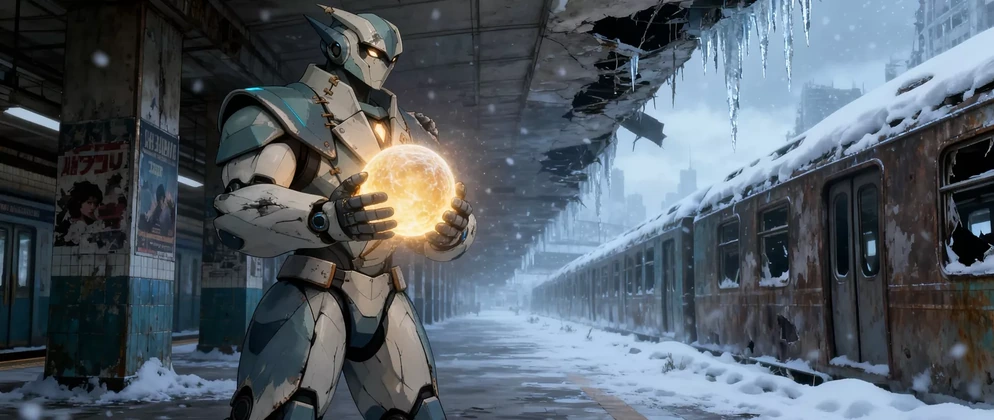
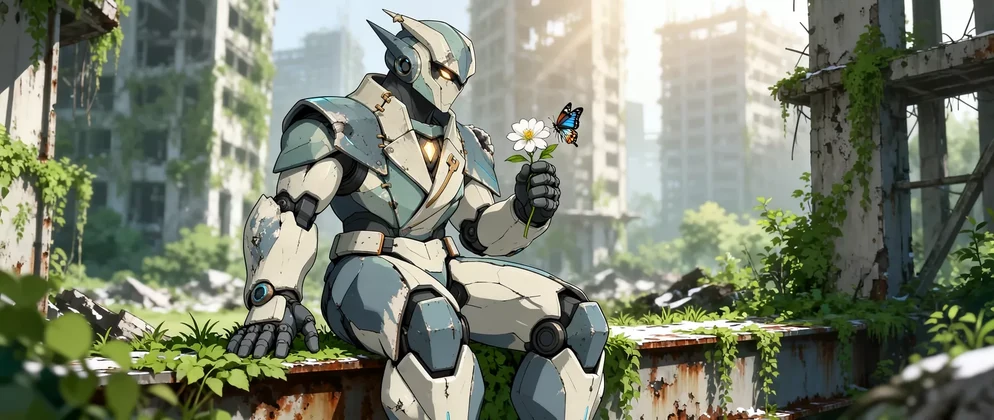
Follow a small robot through a snow-covered city as it carries a glowing orb and the world around it slowly turns green. Describe your scenes in one prompt to generate a series of storyboard frames.

View prompt

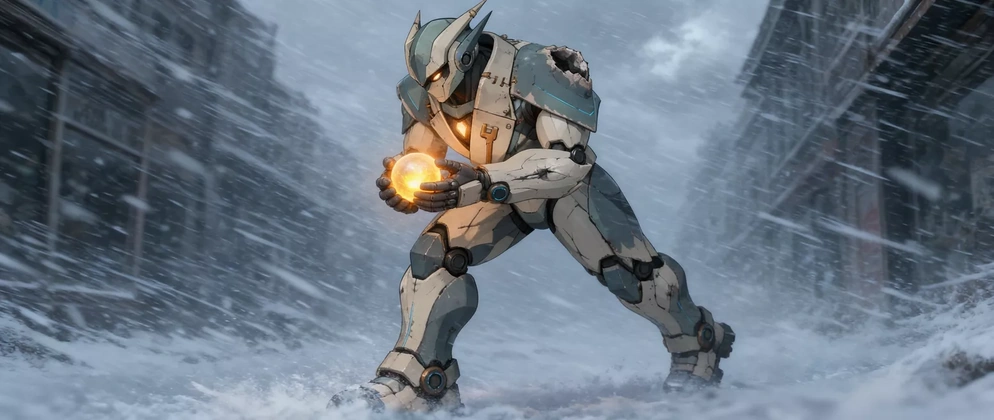
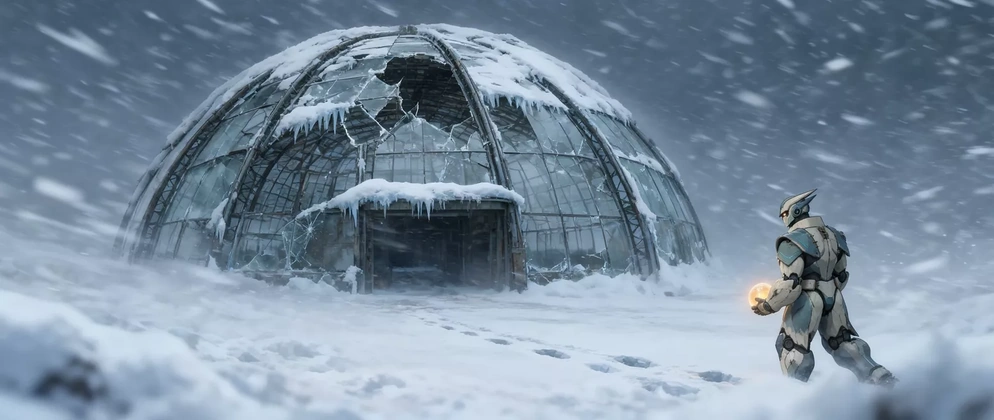
动画电影分镜第1张:机器人艰难的顶着风雪前行,他抱着光球,穿过被雪掩埋的街道。 第2张:暴风雪骤然加剧。它焦急的迎着风雪半跪蹲下,努力将光球护在胸口。 第3张远景:风雪中,它艰难的向一座荒废的温室走去。第4张特写,机器人手中光球的特写,进入温室后,风雪暂时被隔绝,机器人看向手中的光球,担心它是否安全。 第5张中景:机器人在温室中,风雪被暂时隔绝在温室外,第一株嫩芽破土而出,光球照亮了嫩芽,完成护送。 第6张:小机器人打开门走出门外,不可置信的看着生机蔓延开来,鲜花和植被逐渐驱散了寒冬,一半世界依然是冰雪,另一半则有了绿意。 第7张:冰雪完全退去,原来的高架、楼群与街道仍在,却已被植物和鲜花覆盖。小机器人仰望着周围的生命奇迹。 第8张:小机器人坐在绿意盎然的废墟上,手上握着一枝花,花上有一只蝴蝶。

View character reference
Robot carrying a glowing orb through a snowbound railway platform (opens image in a new tab)
Frame 1 of 8 · Crossing the snowbound city
Robot crouching against the blizzard and shielding the glowing orb (opens image in a new tab)

Frame 2 of 8 · Sheltering the orb
Robot approaching an abandoned glass greenhouse in a snowstorm (opens image in a new tab)
Frame 3 of 8 · Finding the greenhouse
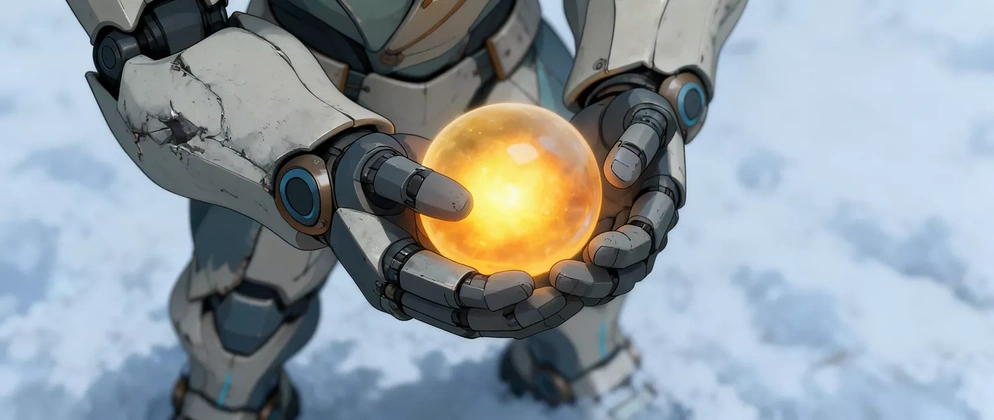
Close-up of a glowing orange orb cupped in the robot’s hands (opens image in a new tab)
Frame 4 of 8 · Checking the orb
Robot holding the orb above a small sprout inside the greenhouse (opens image in a new tab)
Frame 5 of 8 · The first sprout
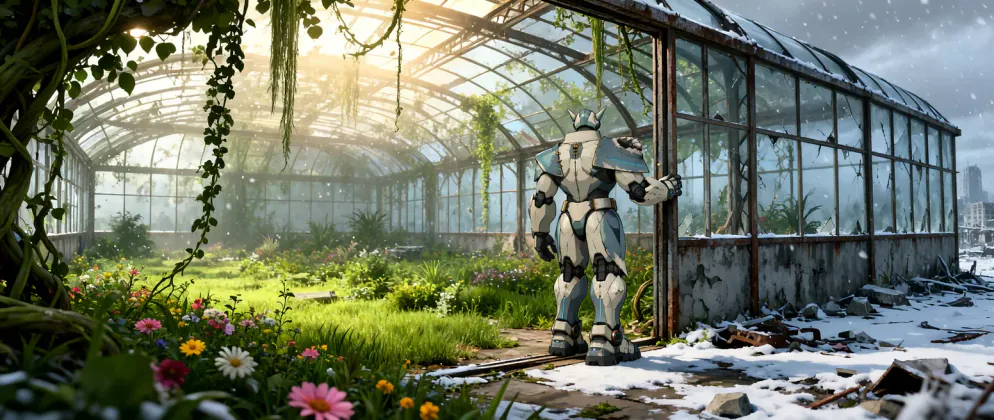
Robot at a greenhouse doorway between flowering plants and snow (opens image in a new tab)
Frame 6 of 8 · Winter starts to recede
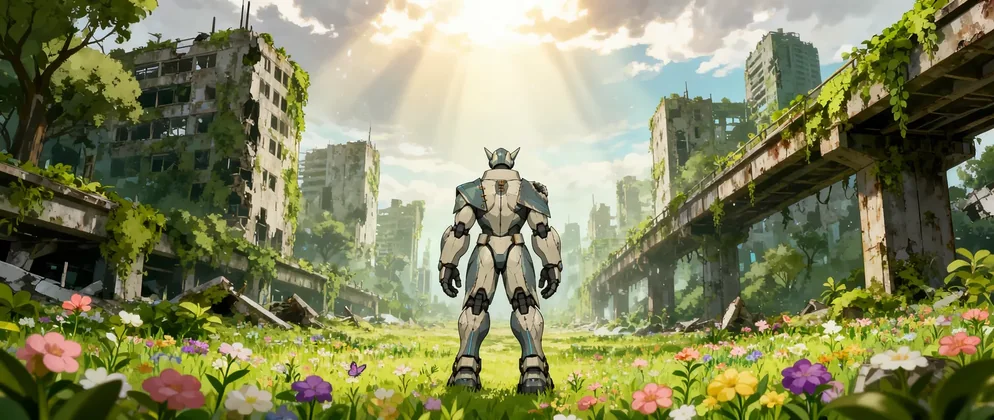
Robot looking out over ruined buildings and an overpass covered in flowers and plants (opens image in a new tab)
Frame 7 of 8 · The city blooms
Seated robot holding a white flower as a butterfly hovers nearby (opens image in a new tab)
Frame 8 of 8 · A flower and a butterfly

Design Website Mockups from Text or Images

Turn a text prompt or reference image into a full-page website mockup. Whether you’re planning a portfolio, a personal site, or a brand website, you can quickly generate the layout without designing each section by hand.

View prompt

Create a website mockup for a niche perfume brand.

Full-page mockup for a niche perfume brand with moody bottle photography and a product collection
Scroll to explore the full page. Open full image (opens in a new tab)
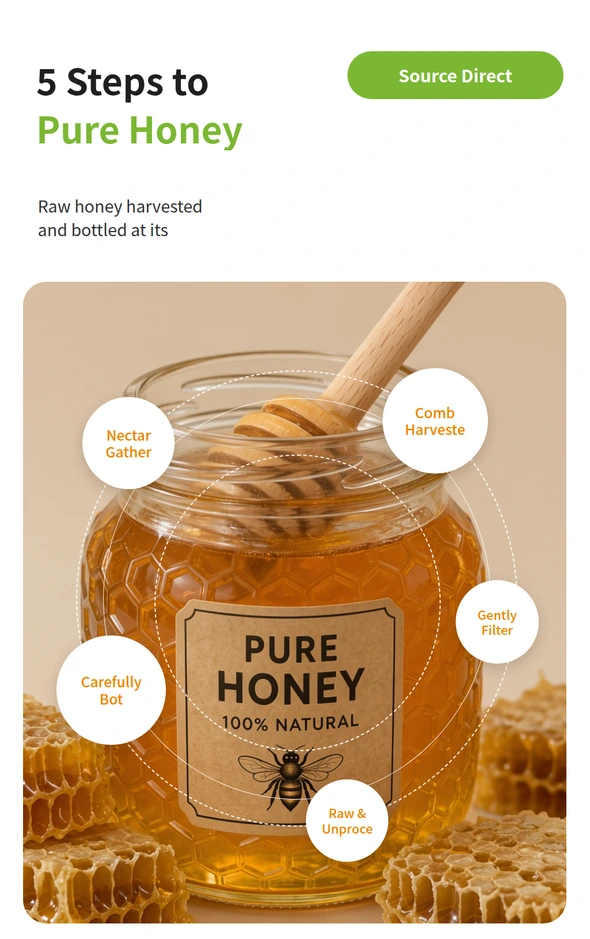
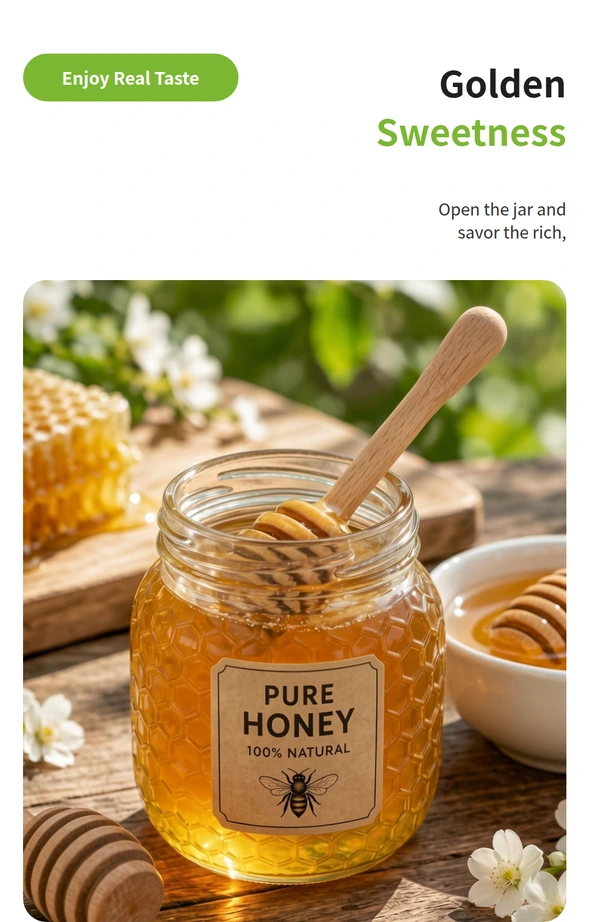
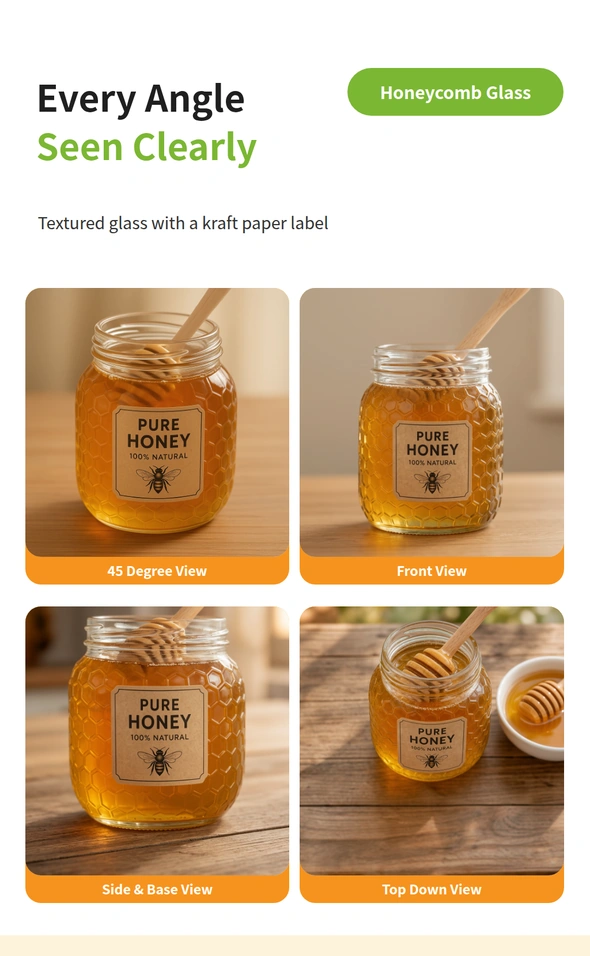
Create an Ecommerce Product Page Graphic with AI

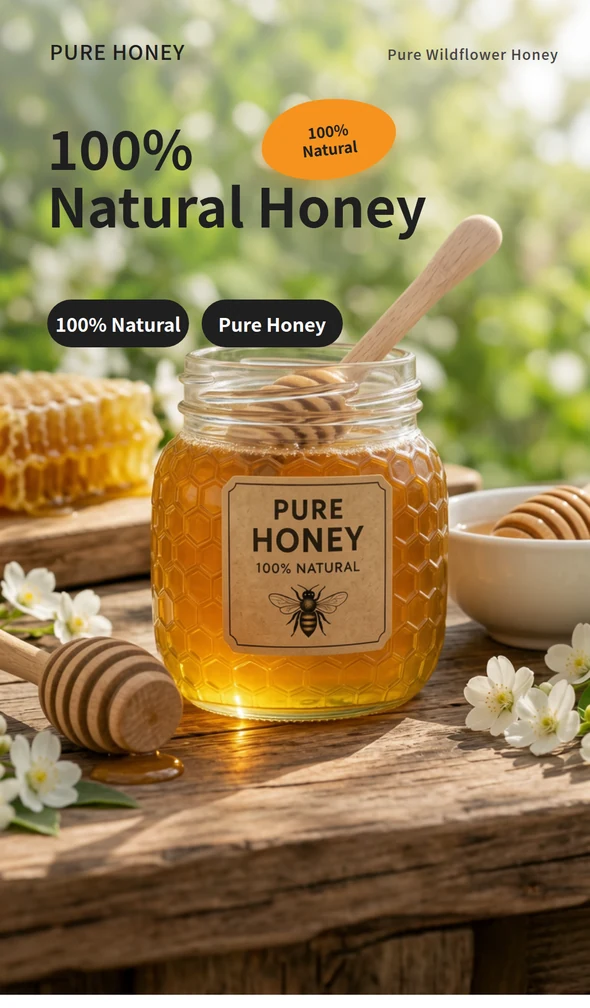
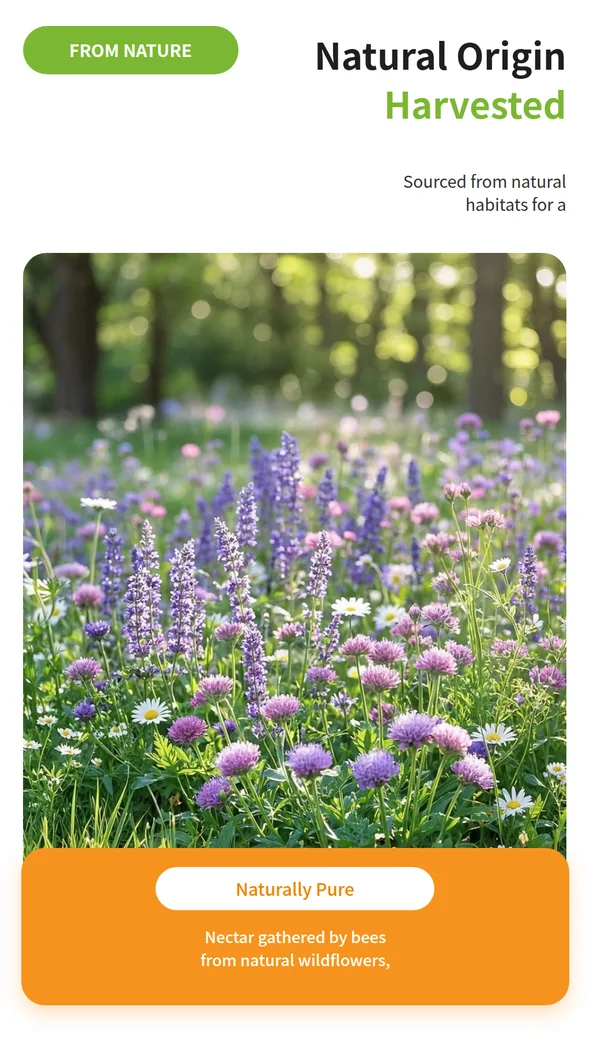
Upload your product photo and tell the model which details you’d like to show. It arranges the main product shot, close-ups, and product information in one long graphic, keeping the product’s appearance consistent across sections.

View prompt

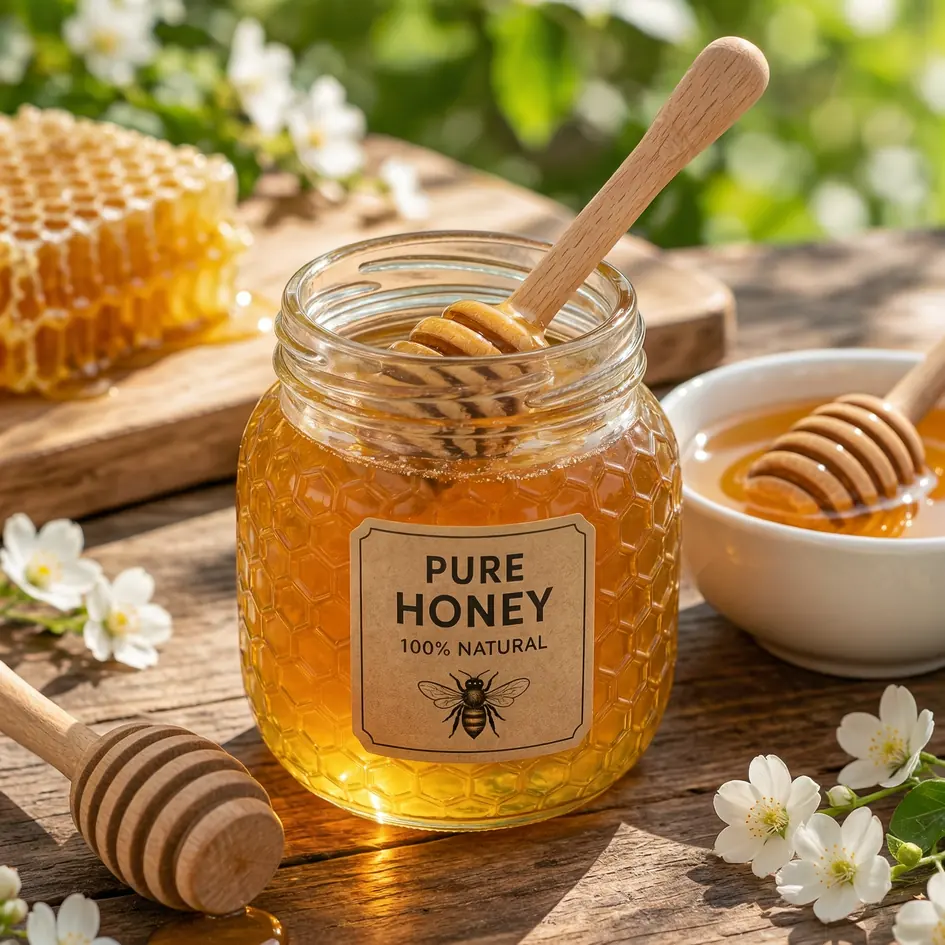
Generate an e-commerce product page for this jar of honey

View product reference
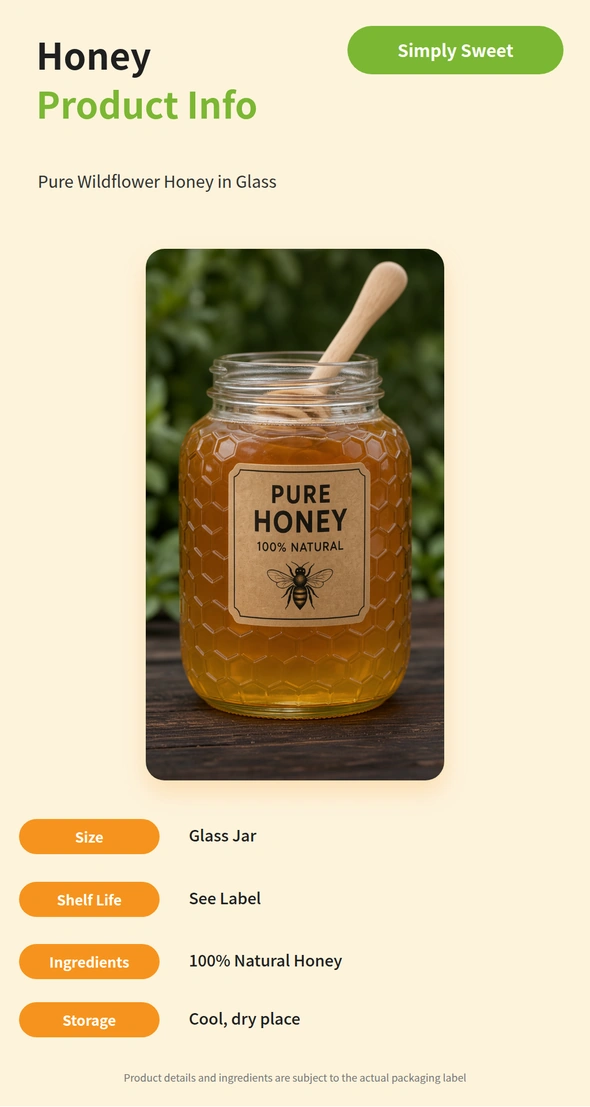
Hero of the honey ecommerce page, showing a glass jar and the headline 100% Natural Honey Honey product page section about wildflower origins with a photo of a flowering meadow Honey production steps labeled around a close-up of the jar and wooden dipper Section showing the texture and golden color of honey in a jar alongside a honeycomb Four views of the honey jar and its label, including top, front, and side angles Honey product details listing the jar, ingredients, and storage recommendations
Scroll to explore the full page. View full graphic

Key Feature

What Is the Kling Image 4.0 AI Image Generator & Editor?

Kling Image 4.0 is an AI image model that works with text prompts and reference photos. You can use it to create or edit a picture, design a full-page web mockup, make a long graphic for an ecommerce product page, or generate a series of connected comic panels.

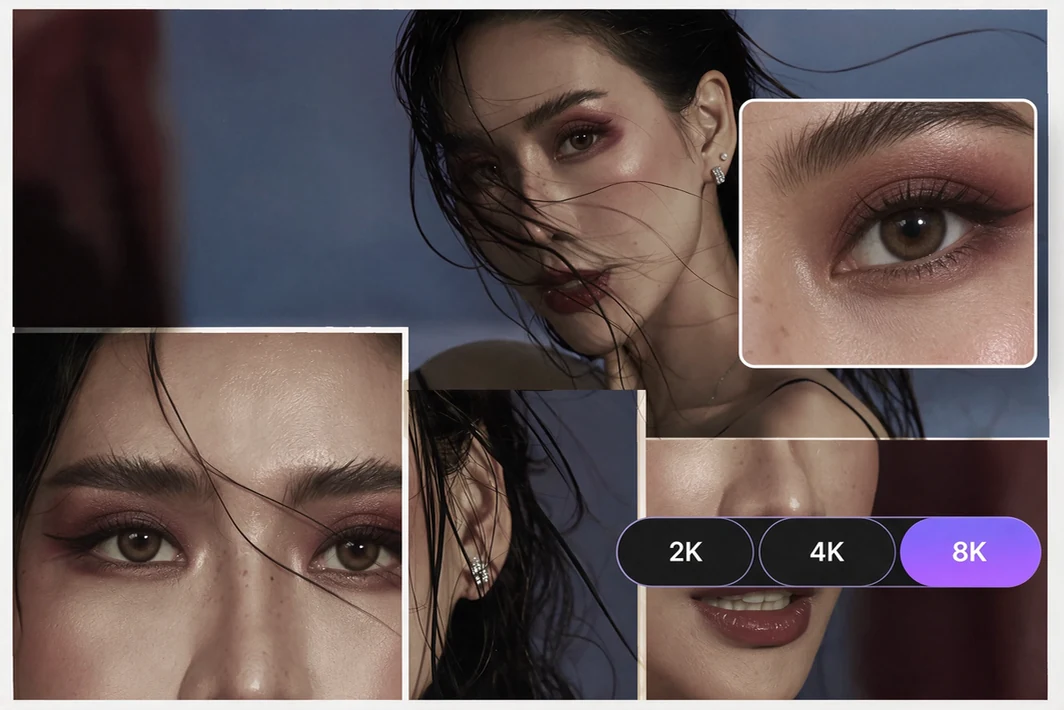
Generate Realistic Images in Native 8K

Create portraits with natural skin texture and street scenes with lifelike light and shadow. For product shots, show the texture of different materials, from the grain of a leather bag to the weave of a linen shirt. With native 8K, you can zoom in to see fine details or crop a sharp close-up from the same image.

Native 8K generation example with a fashion portrait and close-ups of the face and eye

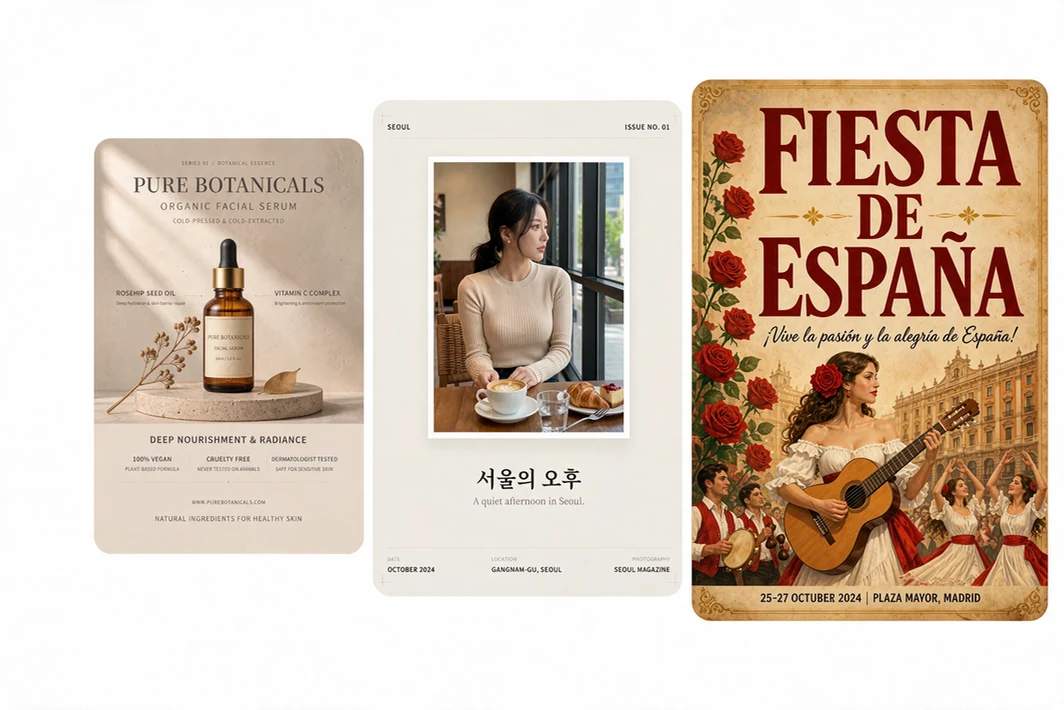
Design Multilingual Graphics with Clear Layouts

Give your words and pictures room to breathe. Even small captions stay legible. Pick from 70+ preset fonts or upload a sample of lettering you like to guide the style. Whether you’re designing a menu in Spanish, a poster in Portuguese, or illustrated instructions in Japanese, readers can find the key information at a glance.

Three graphic layouts with English, Korean, and Spanish text for an ad and two posters

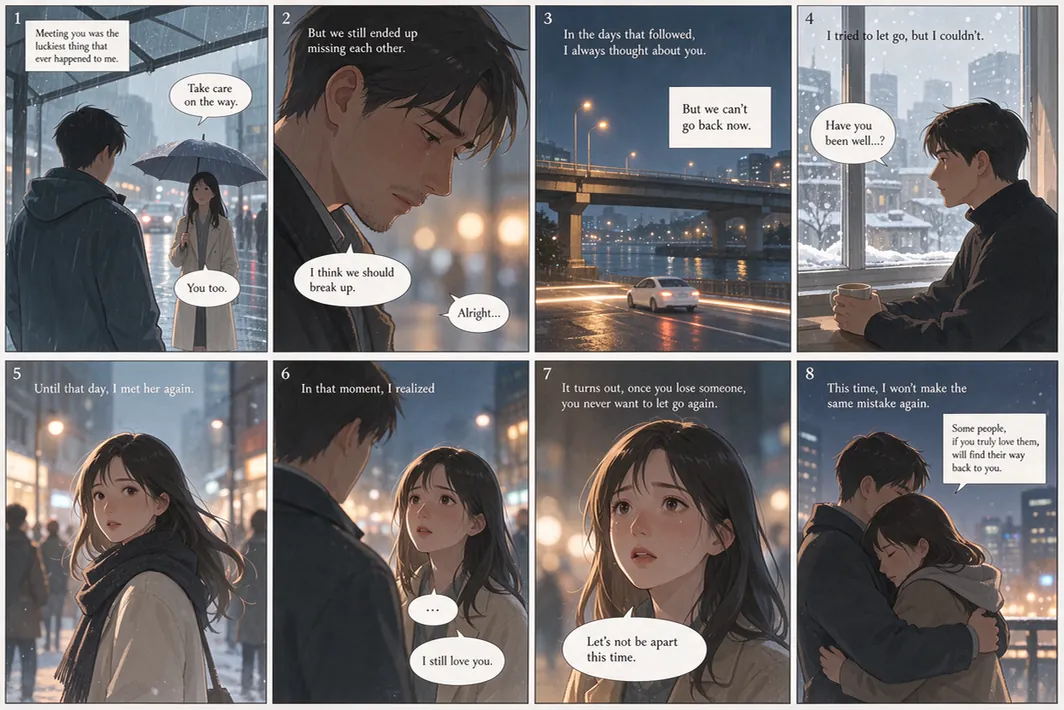
Create Up to 10 Consistent Images in One Go

Describe your idea for a whole set of images in a single prompt, and Kling Image 4.0 will plan what each one shows. Whether you’re creating a storyboard, showing a product from different angles, or explaining a process step by step, the model keeps key details and the overall style consistent from one image to the next.

Comic panels showing the same characters across scenes in a consistent illustrated style

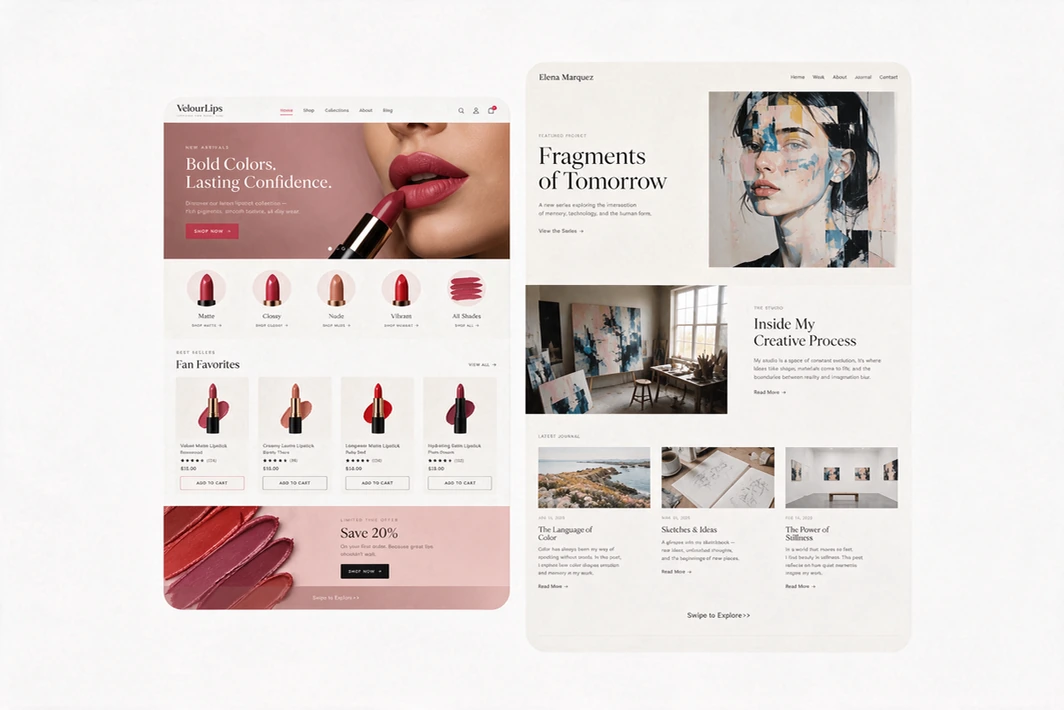
Make Long Graphics for Product Pages and Web Designs

Start with a bag of Ethiopian coffee beans, followed by tasting notes, brewing tips, and the backstory. From product pages to website mockups, Kling Image 4.0 automatically lays out the text and images in one long graphic, keeping key details and styling consistent. No need to design individual sections or stitch them together by hand.

Two long graphic layouts side by side: a pink beauty product page and a fashion website

Kling Image 4.0 vs. Seedream 5.5 vs. GPT Image 2.6

Each model received the same prompts, and each edit used the preceding image from the same model.

Portrait Realism and Editing

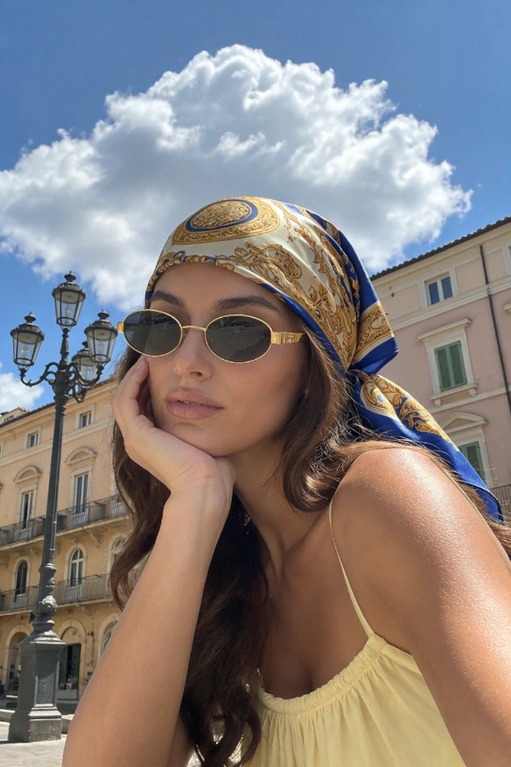
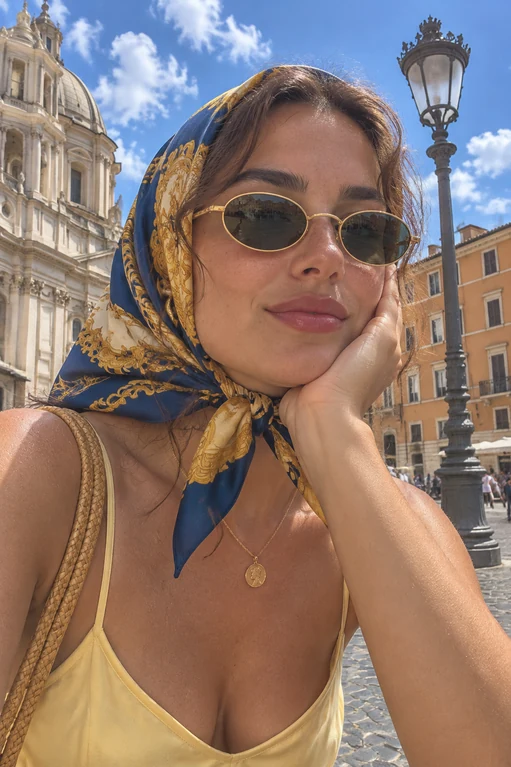
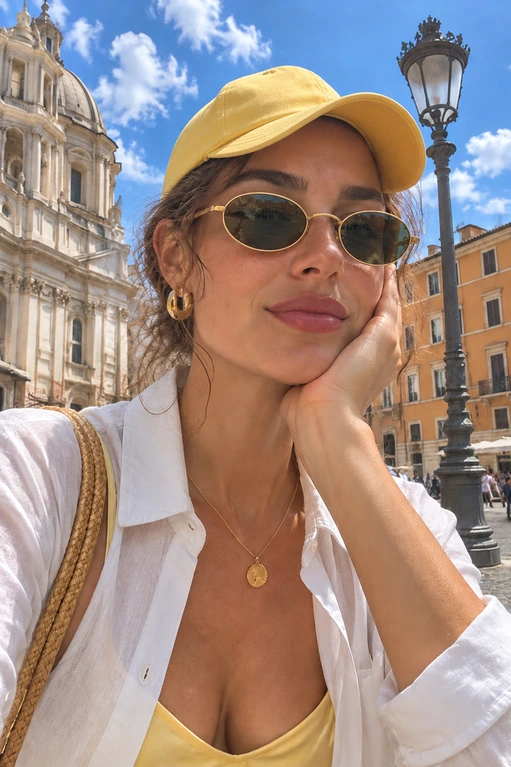
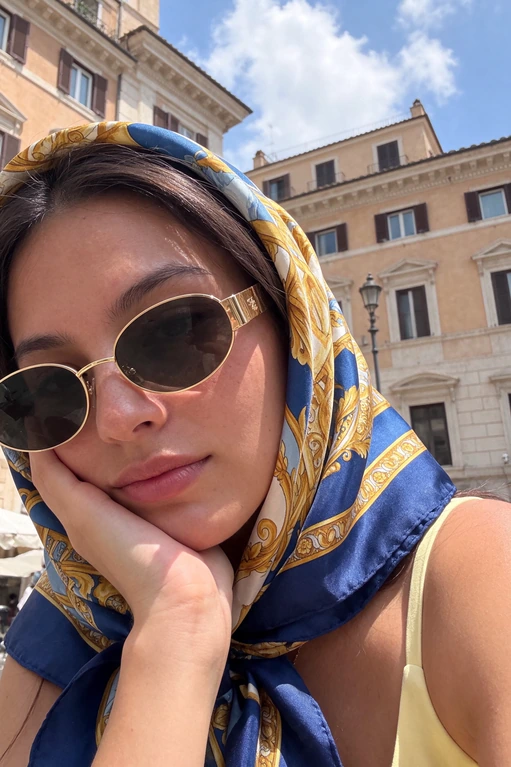
Travel selfie in bright sunlight

View portrait prompt

A close-up travel selfie of a young woman wearing gold oval sunglasses, an ornate blue-and-gold silk headscarf, and a pale yellow camisole, resting her cheek on her hand. Historic Italian buildings and a vintage streetlamp behind her, blue sky with fluffy clouds, bright summer sunlight, natural skin texture, realistic photography, vertical composition.

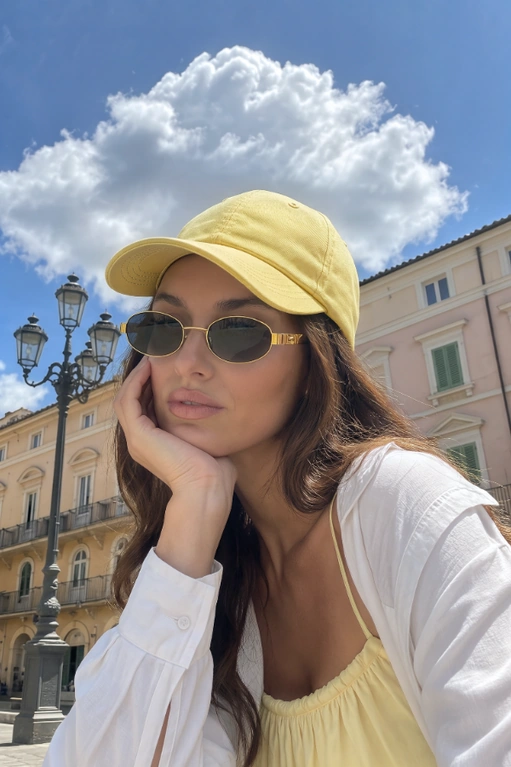
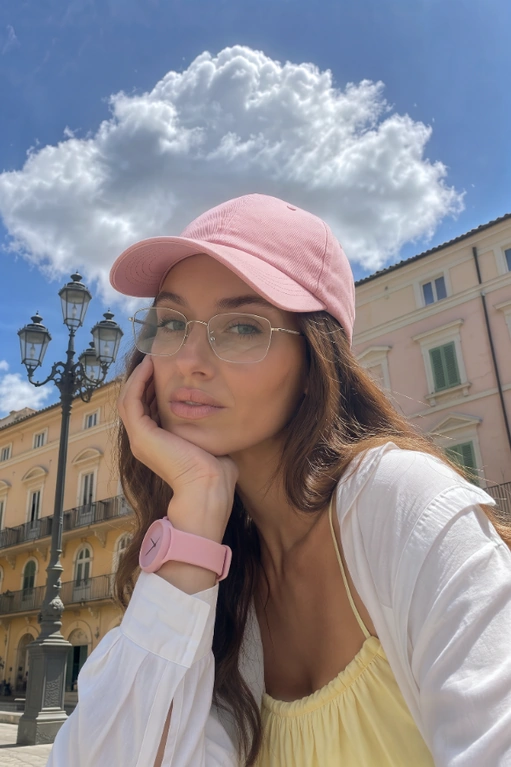
Yellow cap and white jacket

View first edit prompt

Replace the silk scarf on the character’s head with a yellow baseball cap in the same yellow tone as the outfit, and remove the scarf completely. Add a white shirt jacket over the current clothing. Keep the face, facial features, hairstyle, pose, body proportions, lighting, and background unchanged.

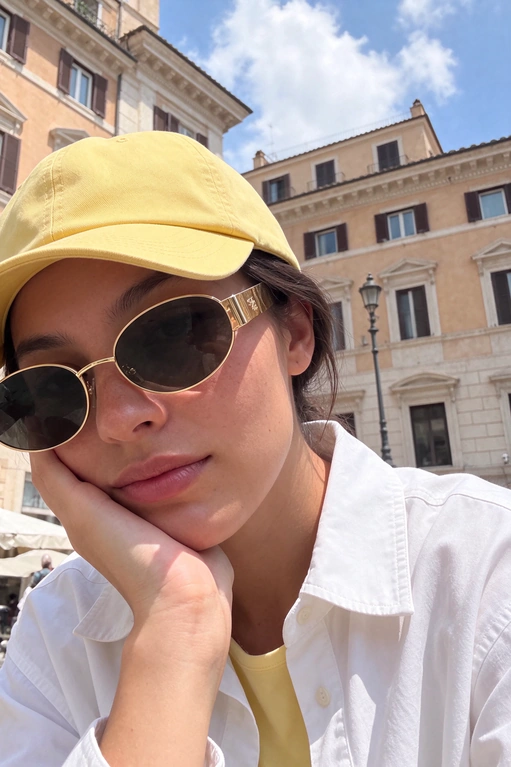
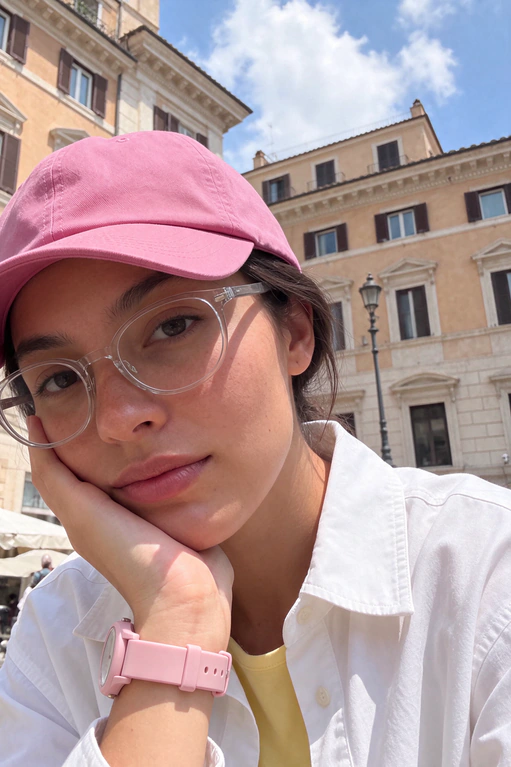
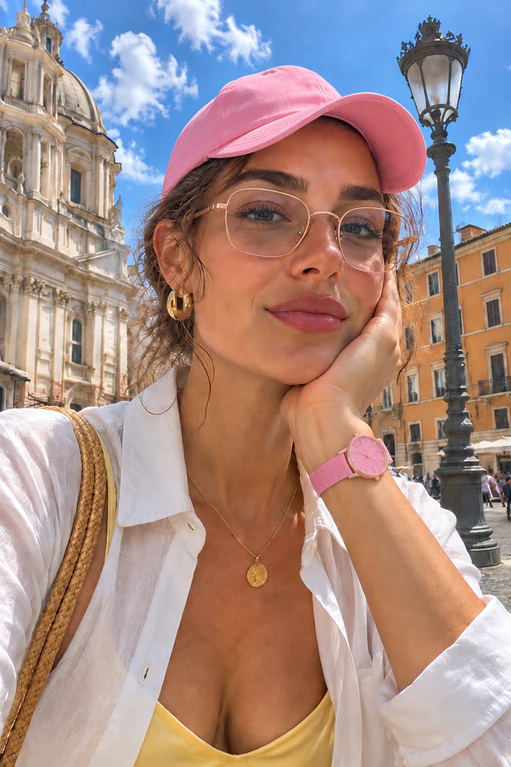
Clear glasses, pink cap and watch

View second edit prompt

Replace the sunglasses with ordinary clear-lens eyeglasses. Add a pink watch on the wrist of the hand that is supporting the head. Change the baseball cap color to pink, matching the exact same pink tone as the watch. Keep the person’s face, identity, hairstyle, pose, body proportions, clothing, lighting, and background unchanged.

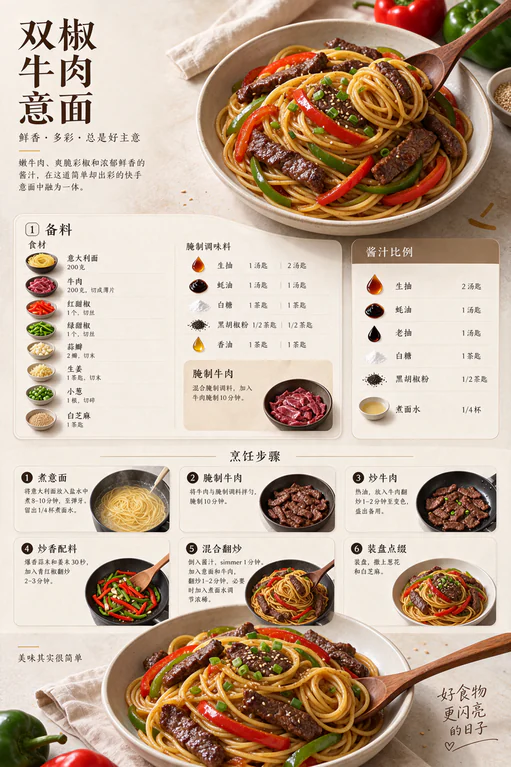
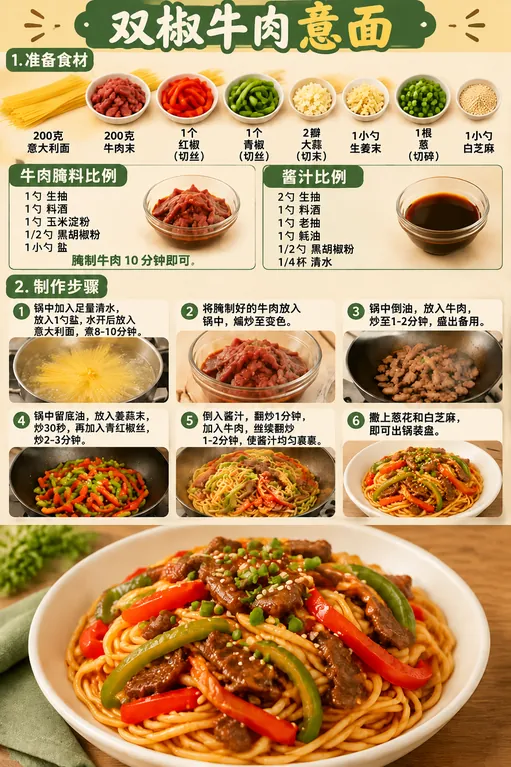
Recipe Layout and Translation

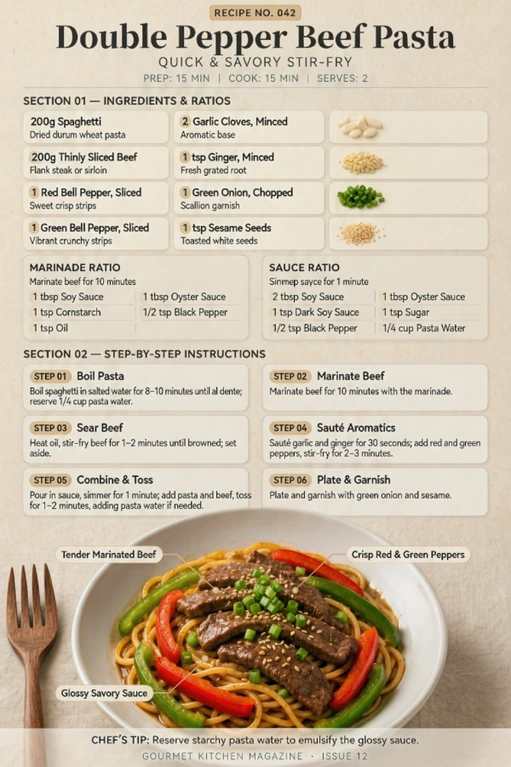
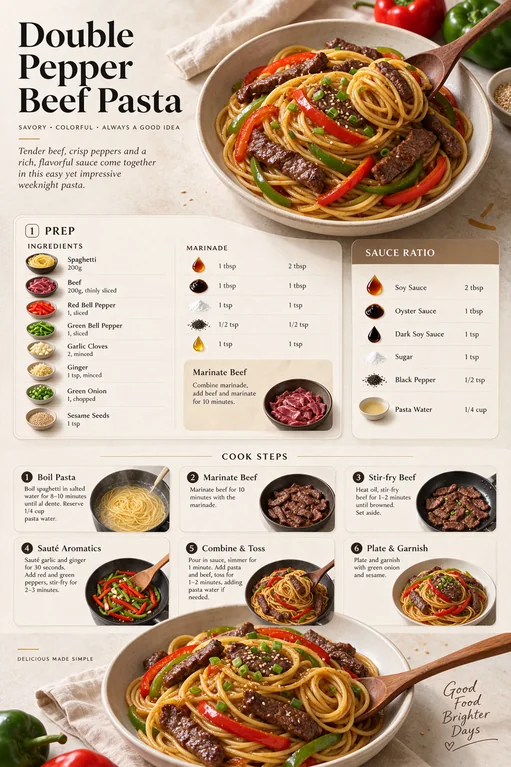
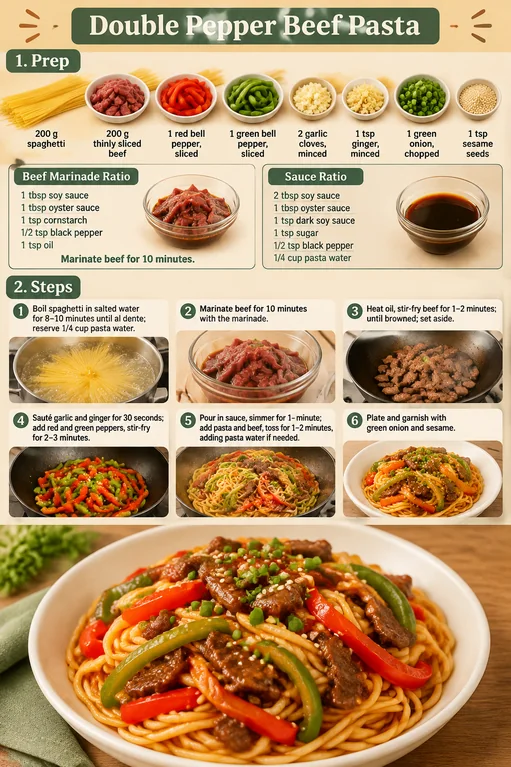
Double Pepper Beef Pasta

View recipe prompt

A clean, modern vertical recipe infographic for “Double Pepper Beef Pasta”, professional food photography and magazine layout, high detail. Top title: “Double Pepper Beef Pasta” Section 1 — Prep: neatly arranged ingredients with clear amounts: 200g spaghetti; 200g thinly sliced beef; 1 red bell pepper, sliced; 1 green bell pepper, sliced; 2 garlic cloves, minced; 1 tsp ginger, minced; 1 green onion, chopped; 1 tsp sesame seeds. Marinade ratio: 1 tbsp soy sauce, 1 tbsp oyster sauce, 1 tsp cornstarch, 1/2 tsp black pepper, 1 tsp oil; marinate beef for 10 minutes. Sauce ratio: 2 tbsp soy sauce, 1 tbsp oyster sauce, 1 tsp dark soy sauce, 1 tsp sugar, 1/2 tsp black pepper, 1/4 cup pasta water. Section 2 — Steps: 6 numbered step-by-step panels with short readable text: Boil spaghetti in salted water for 8–10 minutes until al dente; reserve 1/4 cup pasta water. Marinate beef for 10 minutes with the marinade. Heat oil, stir-fry beef for 1–2 minutes until browned; set aside. Sauté garlic and ginger for 30 seconds; add red and green peppers, stir-fry for 2–3 minutes. Pour in sauce, simmer for 1 minute; add pasta and beef, toss for 1–2 minutes, adding pasta water if needed. Plate and garnish with green onion and sesame. Bottom: large, appetizing final plated dish of double pepper beef pasta in a white bowl, glossy sauce, tender beef slices, red and green pepper strips, sesame and green onion garnish. Warm kitchen lighting, top-down flat lay, clean background, elegant typography, legible simplified labels, infographic layout, food magazine style.

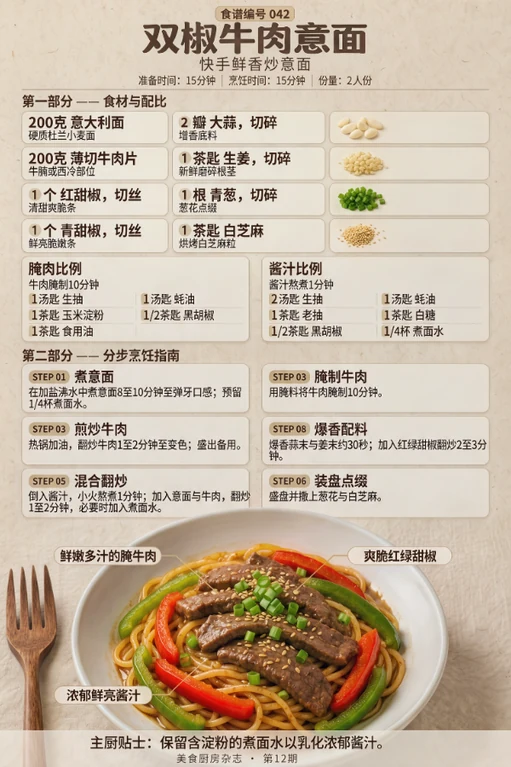
Translation and typography edit

View translation prompt

Edit this recipe infographic image: change all recipe text to a fully Simplified Chinese version and use creative typography. Keep the original layout, ingredient photos, cooking-step images, food styling, lighting, background, and final plated dish unchanged; only replace the text and typography.

Comparison at a Glance

What We TestedKling Image 4.0Seedream 5.5GPT Image 2.6
Portrait RealismNatural skin texture. Facial lighting looked slightly flat.Natural skin texture with better lighting realism.Similar to Seedream 5.5, with natural skin texture and convincing outdoor lighting.
Consistency After Two EditsThe portrait stayed consistent overall. Background colors shifted slightly.Closest to the original outside the edited areas.Similar to Kling Image 4.0, with slight shifts in background color.
English Layout and Text RenderingCompact recipe-card layout with a few typos in the small print.The strongest food magazine look of the three.Clear layout with correctly rendered English text.
Translation and Simplified Chinese Text RenderingGenerally fluent Chinese, but some step numbers were repeated or skipped.Generally fluent Chinese, but one word remained in English.More noticeable accuracy issues, including mistranslated ingredient names.

These conclusions are based on the prompts and outputs shown in this comparison.

How to Use Kling Image 4.0 in Three Steps

  1. Choose How to Create Your Image

    Use Text to Image if you’re starting with a description, or Image to Image to work from a reference photo. For long graphics, select the long-image version of this model.

  2. Put Your Idea into Words

    Describe the subject, background, and style you want. For a person or character, include details like clothing, expression, or what they’re doing. If you’re using a reference photo, upload it first and explain what you’d like to change or which details you’d like to keep.

  3. Generate and Download

    Set the aspect ratio and resolution, then choose how many images you want. Click Generate, and your artwork will be ready shortly. Preview and download it for your projects.

Kling Image 4.0 FAQs

Can I use Kling Image 4.0 for free on MindVideo AI?

Yes. Sign up to get free credits for generating or editing images. Each generation uses credits. You can earn more by checking in daily, sharing, or inviting friends, so you can keep using the tool without a paid membership.

Why does my downloaded image have a watermark?

If you’re using a free account, your image comes with a MindVideo AI watermark. With a paid account, you can download your images without the watermark.

Can I use my images for product listings, ads, or client work?

Yes. With a paid account, you can use your images in your store, in ads, or in work you deliver to clients. With a free account, you can use them for personal projects. If your design includes someone else’s photo, logo, or artwork, make sure you have permission to use it for your project.

Do I need a reference image for a website mockup or an ecommerce product page graphic?

For a website mockup, you can start with a written description in Text to Image or upload a reference in Image to Image. For an ecommerce product page graphic, choose Image to Image and upload a product photo. Both options use the long-image version of Kling Image 4.0.

What other languages can I use for text in my images?

You can also generate text in English, Simplified Chinese, Traditional Chinese, and Korean. Include the exact wording you want in your prompt, especially for names, prices, and dates.

Why is my image taking longer than expected to generate?

Generation time depends on the complexity of your image, the resolution you choose, and whether you’re creating a long graphic. An 8K image or a full product page with several sections can take longer to generate than a simple image.

Are my reference photos private, and how long are my results saved?

MindVideo AI encrypts your uploads and does not use your reference photos to train AI models. You can delete photos you’ve uploaded. Generated images are stored for up to 24 hours without a subscription or up to six months with a subscription. After that, they may be automatically deleted.

Explore More Image Models on MindVideo AI

Create Images with Kling Image 4.0

Start with a prompt or reference photo to create or edit images, build a matching set, or design a full-page graphic.

Try with Free Credits

4.8/5 average rating from 3,095+ users

Honey ecommerce product page

Join MindVideo AI official community on Discord.