Easily Remove Text from Video Online with AI

Remove subtitles, captions, titles, labels, and other unwanted text from your video. Simply upload your video, and AI rebuilds the covered areas while keeping edited frames consistent for a clean, natural-looking result without flicker - no complicated editing required.

Remove Text from Video
AI-Powered Cleanup No Complicated Editing Clean, Consistent Results
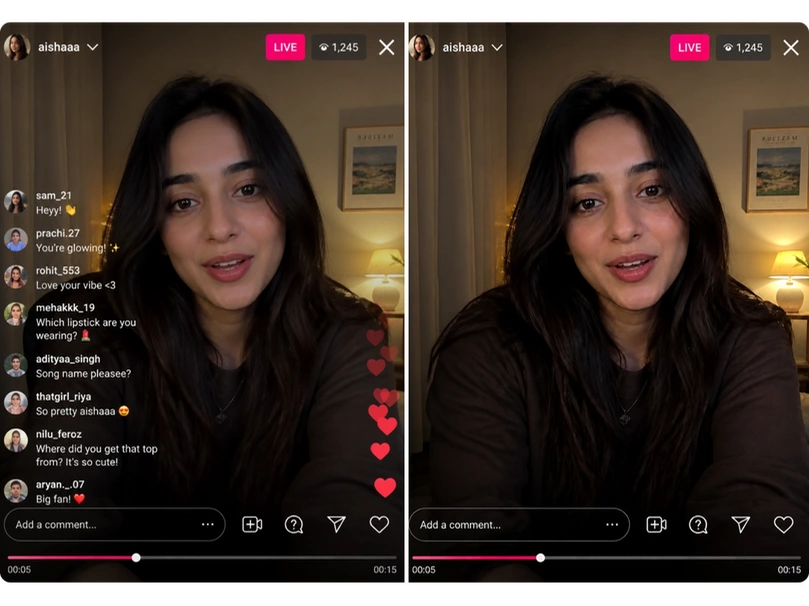
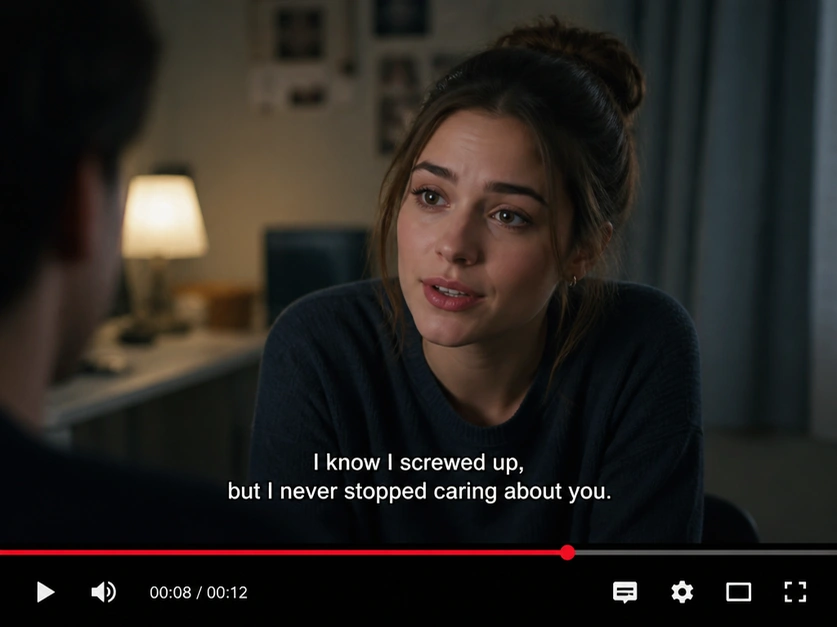
Video frame with embedded subtitles before using an AI Video Text Remover
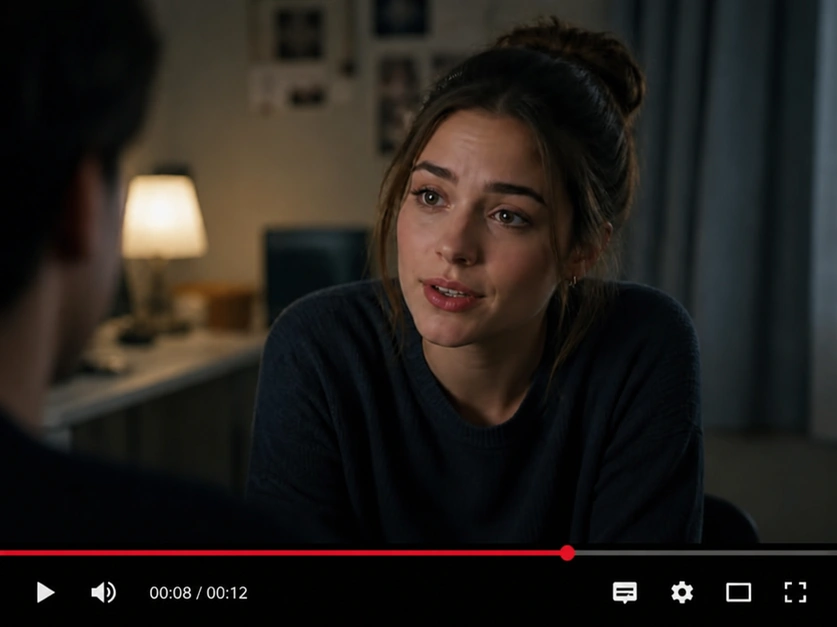
Remove Text from Video result showing the same scene without embedded subtitles

Three Flexible Ways to Remove Text from Video

Use Smart Mode for bottom subtitles, Select Mode for up to five fixed text areas, or Advanced Mode for moving and changing text anywhere on the screen.

Best for bottom text

Smart Mode: Automatically Remove Bottom Subtitles

No manual selection needed. AI automatically detects and removes subtitles and captions from the lower part of your video. Suitable for hardcoded subtitles, burned-in captions, dialogue text, and other text fixed at the bottom of the frame.
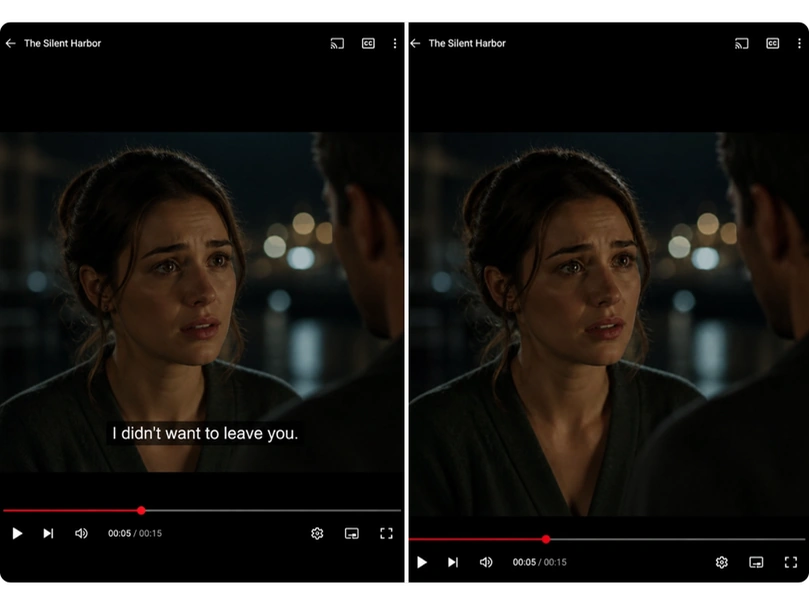
Smart Mode comparison removing hardcoded subtitles from a movie scene

How to Remove Text from Video in 3 Easy Steps

Upload your video, choose the right removal mode, and download a clean result in minutes.

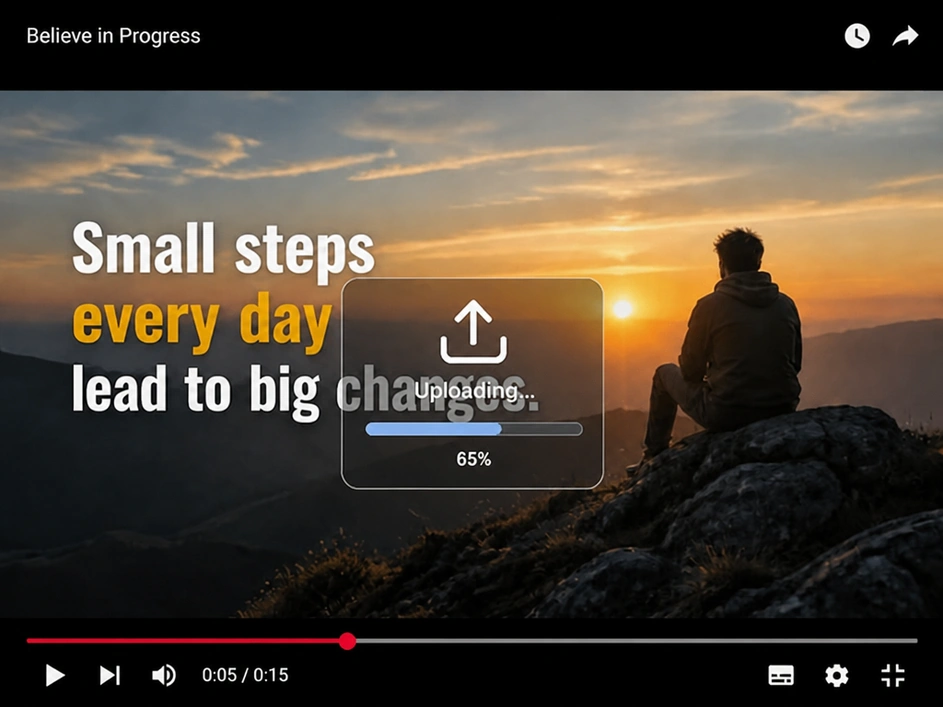
Video upload progress screen starting an AI Video Text Remover workflow

1. Upload Your Video

Upload a clear video so the text can be recognized accurately. MP4 and MOV files are supported, with a maximum file size of 200 MB and a maximum video length of 120 seconds.

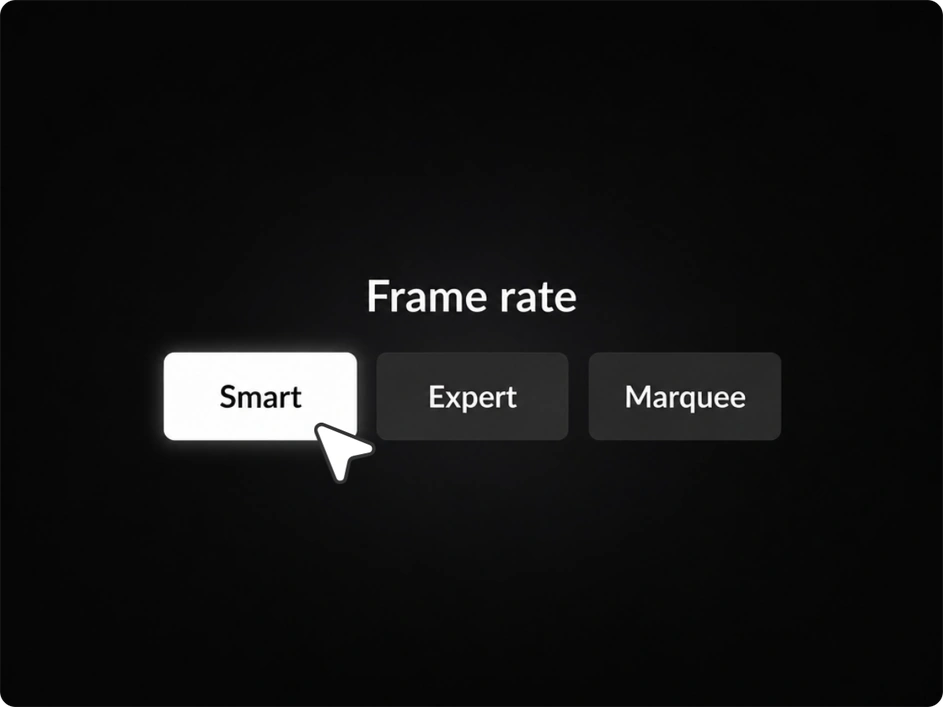
Smart, Expert, and Marquee options for choosing a video text removal mode

2. Choose a Mode

Choose Smart Mode for bottom subtitles, Select Mode for up to five fixed areas, or Advanced Mode for text that moves or changes across the screen.

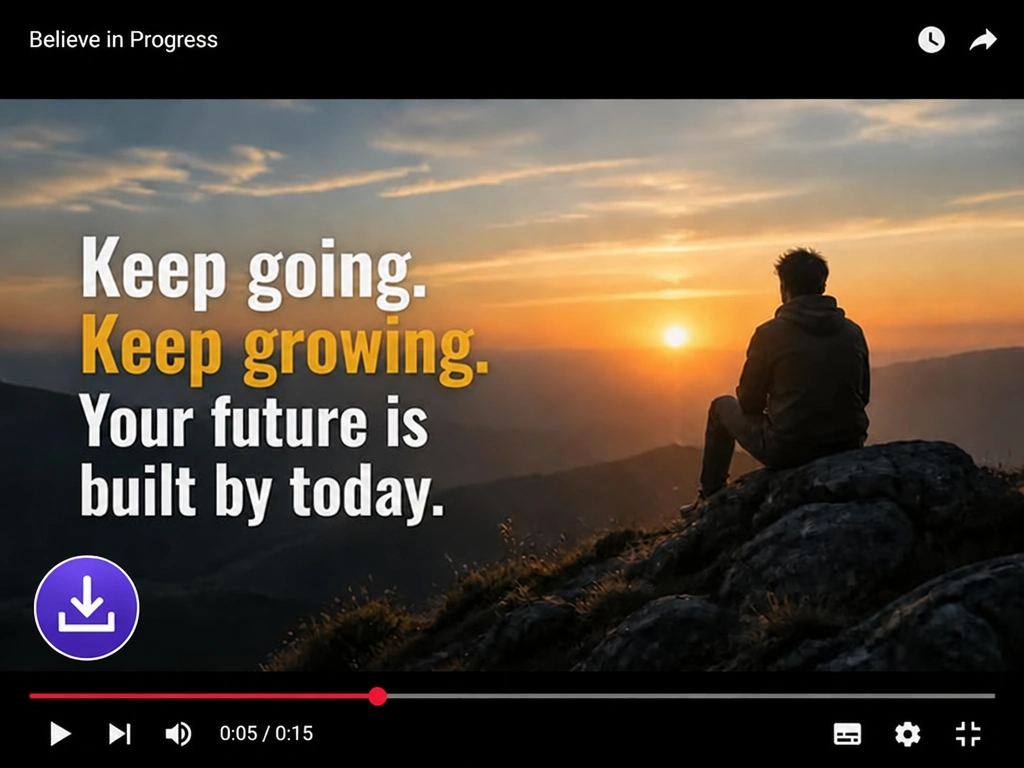
Cleaned video ready to download after unwanted text has been removed

3. Remove and Download

Start the removal process, and AI will clear the target text within minutes while rebuilding the covered areas. Download the cleaned video for further editing or use it in your projects.

Remove Text from Video

Why Choose Our AI Video Text Remover?

Maintain Video Quality

Remove text without reducing the quality of your video. AI rebuilds the covered areas and keeps the edited background consistent, with no blur or flicker.

Remove Text in Any Form

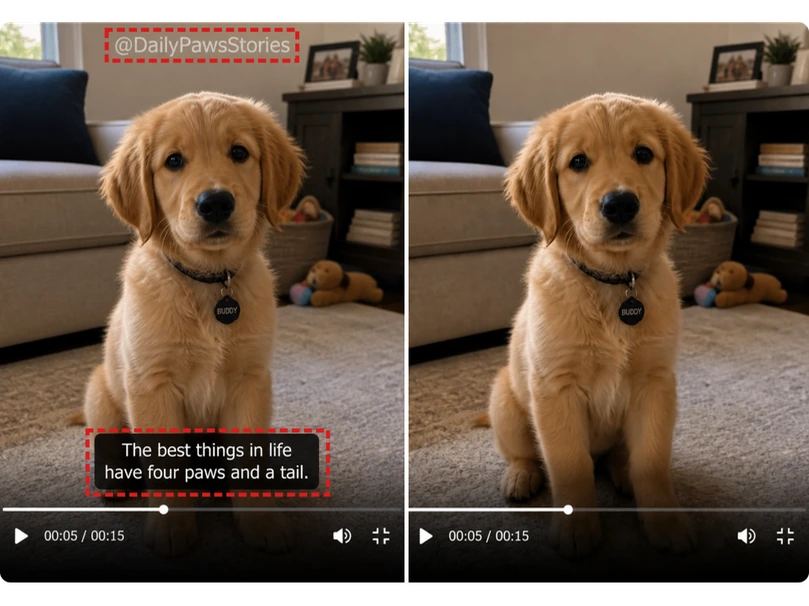
Remove fixed, moving, scrolling, or changing text across the video frame, including subtitles, captions, labels, titles, comments, animated overlays, and more.

Simple Online Text Removal

Remove unwanted text from your video online in a few clicks. Just upload your video and let AI handle the rest. No downloads, complex timelines, or frame-by-frame editing needed.

Private and Secure

Upload and process your video with confidence. Your content will not be published or used for AI training. Uploaded files are securely handled and automatically deleted after a short period.

What You Can Do with Our AI Video Text Remover

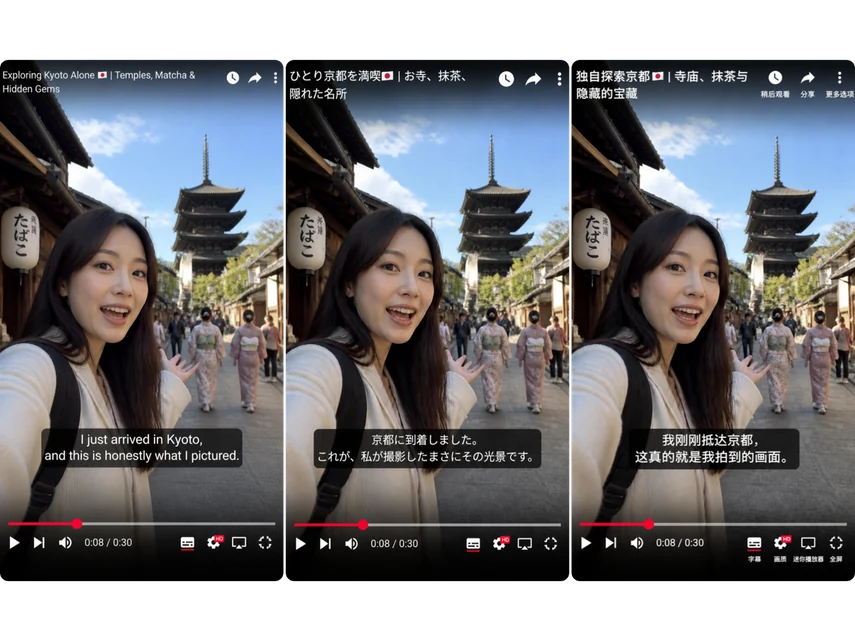
Create Multilingual Videos for Different Markets

Remove the original on-screen text and replace it with a translated version for viewers in different markets. Keep the same footage and turn one finished video into multiple language versions more efficiently, without rebuilding each version from scratch.

Travel video shown with English, Japanese, and Chinese subtitle versions

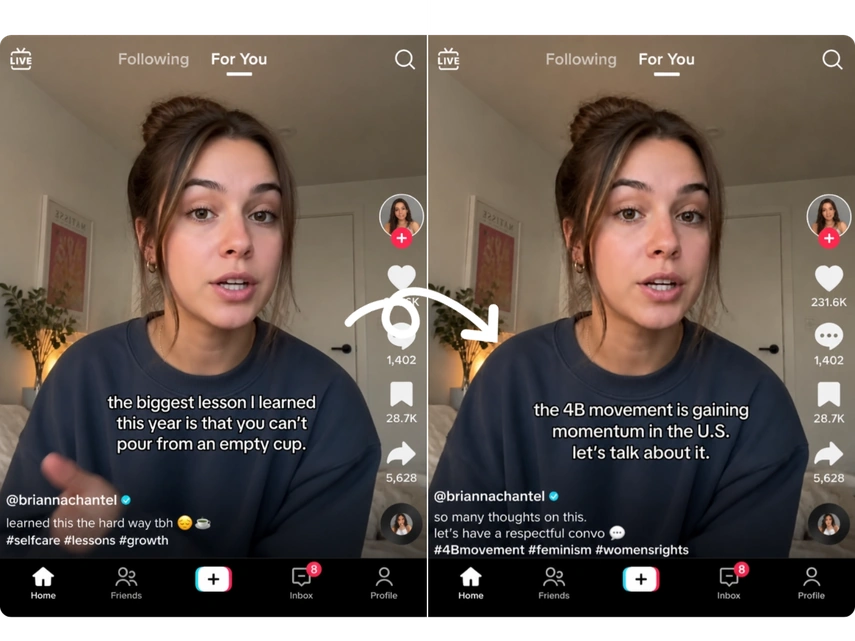
Refresh Social Media Videos for New Trends

Update the text in your existing videos to match a new joke, topic, or social trend. Reuse the same footage to join current conversations and turn it into a fresh post. Keep your posts relevant and make better use of every video you create.

Social video comparison with original captions replaced by updated trend text

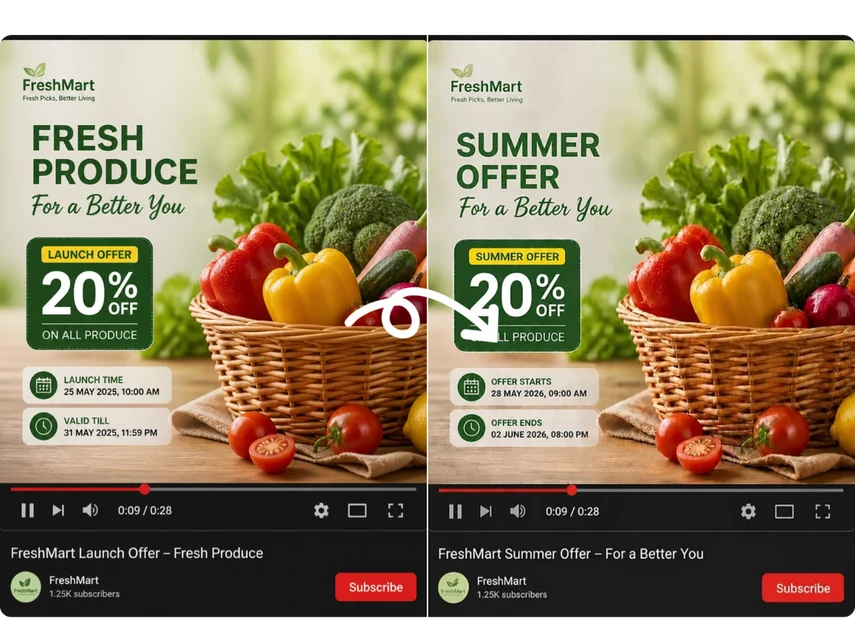
Keep Marketing Videos Up to Date

Update outdated on-screen text - such as prices, dates, offers, event details, or campaign messages - to fit a new sale, event, product launch, or brand campaign. Make timely updates so viewers receive accurate information while reducing video production costs.

Marketing video comparison updating offer text, dates, and campaign details

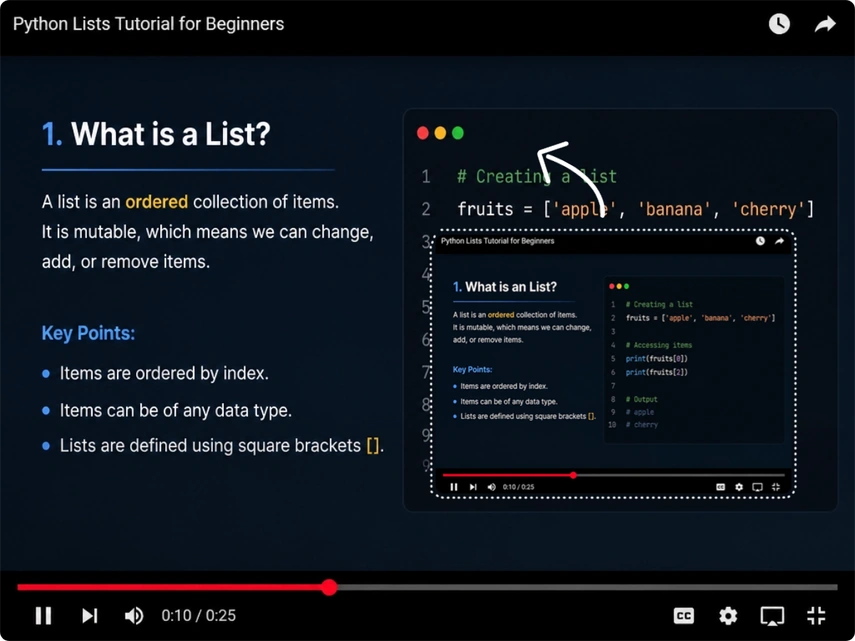
Fix Incorrect Text in Tutorial Videos

Found a wrong label, instruction, or step in a finished tutorial? Use Select Mode to mark and remove only the incorrect text, then add the right information without re-editing the entire video. Fix small mistakes quickly while keeping your content accurate and professional.

Tutorial video showing an incorrect code label selected for text correction

FAQs About Removing Text from Video

Can I remove text that is already embedded in a video?

Yes. The tool is designed for text that has been burned into the video and cannot be turned off, such as hardcoded subtitles, captions, titles, prices, labels, and promotional messages. Upload the finished video and remove the visible text directly.

Which mode should I use for my video?

Start by looking at where the text appears and whether it moves. Bottom subtitles are usually best handled with Smart Mode. Select Mode is more suitable when you only need to correct a few fixed areas. Choose Advanced Mode when the text moves, scrolls, changes frequently, or appears in different parts of the screen.

Do I need to select the text in every frame?

No. You do not need to edit the video frame by frame. In Select Mode, mark the area containing the unwanted text, and AI will process that area throughout the video. Advanced Mode can handle text whose position or content changes over time.

Will the edited video look blurry or flicker?

The removal process does not reduce the original video quality. AI fills in the removed area across the relevant frames, helping the edited scene remain consistent without visible blur or flicker.

Can I use it to correct only one mistake in a finished video?

Yes. Draw a box around the incorrect text in Select Mode, and the rest of the video will remain untouched. After removal, you can add the corrected information without reopening and rebuilding the full edit.

What video files can I upload?

MP4 and MOV files are supported. Each uploaded video can be up to 200 MB and no longer than 120 seconds. A clear source video also helps AI recognize the text accurately and produce a cleaner result.

Will anyone else see my uploaded video?

No. Uploaded videos are not published, shared with other users, or used for AI training. Files are securely processed and automatically deleted after a short period.

How many text areas can I select?

Select Mode lets you draw boxes around up to five fixed text areas in one video. For moving, scrolling, or frequently changing text, use Advanced Mode instead.

Remove Unwanted Text from Your Video Now

Upload your video and clear subtitles, labels, captions, or overlays that no longer belong in the scene.

Remove Text from Video

★★★★★ ★★★★★ Trusted by 7,228+ users for removing unwanted text from videos

Join MindVideo AI official community on Discord.