
How to Remove Text from Video Without Blurring the Image: A Practical Guide for 2026
Do you often get frustrated when you download a movie clip with subtitles, want to edit it into your own video, and then realize the subtitles are burned in? Or maybe you saved a TikTok video, but the automatically generated captions at the bottom are covering the main content. Or perhaps you have an old marketing video where the prices and dates are seriously out of date, but you can’t find the original source file anymore.
These situations are very common. In the past, you might have had to crop out the text using editing software or blur it out as a workaround. Now, with AI video text remover, the process is much simpler than before—but not all tools can do it seamlessly.
This article will explain, from the perspective of the average user, which text can be removed and which can’t, as well as how to do it for free online.
Why Removing Text from Video Is Harder Than It Looks
There are two types of text in videos.
1. Soft Subtitles: a separate subtitle track.
These are the easiest to handle: just turn off the subtitle layer or swap in a new subtitle file, and the video itself stays untouched.
2. Hard Subtitles: also called burned-in subtitles.
They are baked directly into every frame, with the text and background merged together. To remove them, the software has to repaint the part of the background hidden underneath.
This isn’t like using the eraser in Photoshop. Video is always moving, and the background changes frame by frame. In the past, people usually just blurred or pixelated the area, which looked awful. The mainstream approach now is AI inpainting — the software uses nearby pixels to fill in the covered area.
But even then, on complex backgrounds, the area filled by AI can still end up looking blurry. So realistically, you’ll get the best results with small, stationary text on fairly simple backgrounds.
How to Use MindVideo AI To Remove Text from Video: A Step-by-Step Workflow
Step 1: Upload your video and check the format, size, and duration limits.
Most tools limit file size and duration. They typically support MP4 or MOV, with a maximum file size of 200MB, a duration between 3s and 120s, and a resolution from 540p to 1080p. If your video is too long, trim it down to just the section you need to process.
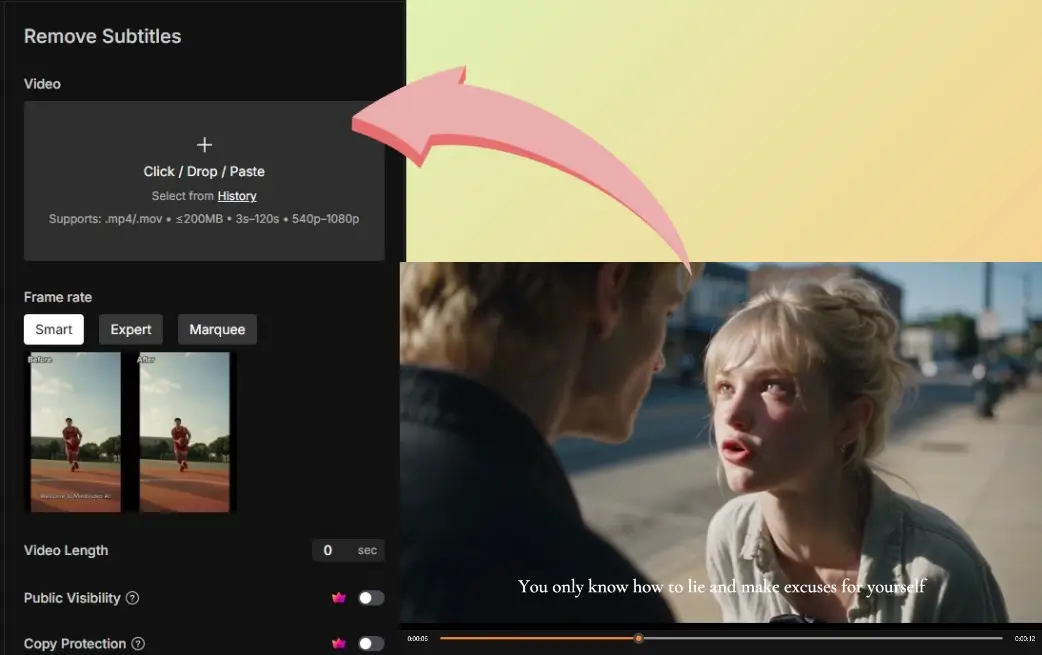
Step 2: Identify the text type and choose the right mode.
If the text is fixed at the bottom of the frame — like movie subtitles — MindVideo AI’s Smart mode can automatically detect the bottom area. If it’s a corner logo or text in a fixed spot, use the selection mode. If the text moves or changes over time, you’ll need Advanced mode or frame-by-frame marking.
Step 3: Generate, preview, then decide whether to redo or download.
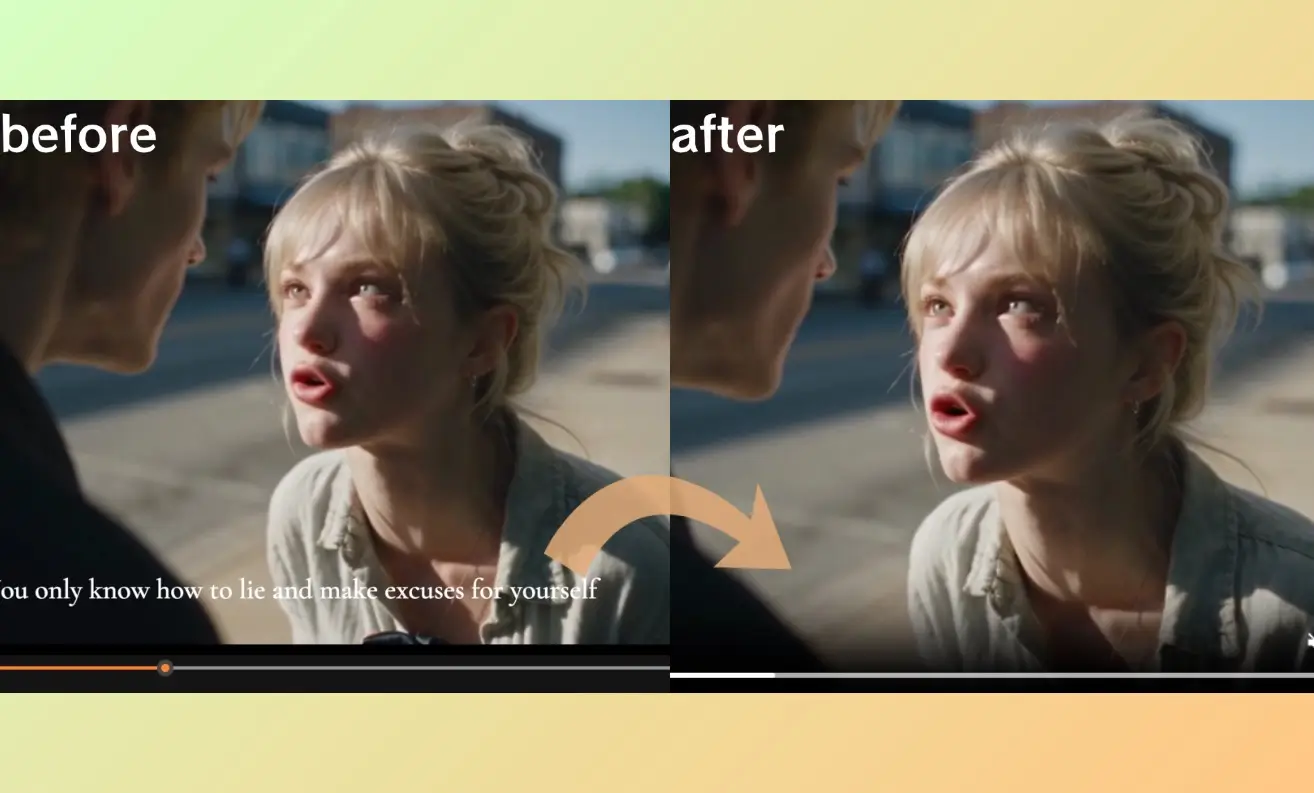
Don’t download right away. Preview the full clip first and check whether the background looks shaky, blurry, or has weird artifacts after the text disappears. If it does, adjust the selection area or switch modes and try again.
Which Video Captions Can Be Removed, and When Might Issues Arise?
Common Types of Text You Can Remove
- Bottom hard subtitles: The most common type. They stay in a fixed position, usually over backgrounds like people, sky, or walls, so the success rate is relatively high.
- Platform watermarks and usernames: Videos saved from TikTok, Instagram, or YouTube Shorts often have account names or platform watermarks in the corners. These are small but sometimes move.
- Time and location tags: Common in videos shot on phones or cameras. They stay fixed and are usually small white text.
- Marketing text: Prices, event dates, and discount info in old videos, usually in the center or bottom of the frame.
- Scrolling text or animated stickers: Harder to deal with. You’ll need a tool that supports motion tracking or frame-by-frame editing.
Tips for Handling Text in TikTok Videos
If you're trying to remove text from TikTok video, you'll usually deal with three types of text:
- Username watermark in the corner
- Auto-generated captions at the bottom
- Stickers or text the creator added manually
The tricky part is that these aren't fixed:
- Captions appear and disappear as people speak
- Stickers may be animated
How to handle it:
- Capture the most challenging frame first and test it
- If the AI handles that frame well, process the full clip
- For complex cases, use selection or advanced mode and work through the video in short segments
One more reminder: Only process videos you own or have permission to edit. Removing watermarks from someone else's video and reposting it violates platform rules and can also raise copyright issues.
When Not to Force Text Removal
If your video matches any of the following, it’s better to cover the text with new subtitles or reshoot/recreate the original video.
1. Complex Textured Backgrounds
Backgrounds like grass, leaves, water, or crowds have a lot of detail. After AI fills them in, you often get repeating textures or color blocks that clearly look edited.
2. Text Covering Faces or Main Subjects
AI can only guess what’s hidden underneath. If text covers a face, eyes, or a product, the filled-in area often ends up distorted or unnatural.
3. Large Text Areas
If subtitles take up a large part of the screen or stay on screen for a long time, the AI has too much area to repaint and the result will be obvious. Covering it with a new subtitle bar or graphic is usually easier.
4. Moving Text
Scrolling text, floating stickers, or zooming text need frame-by-frame tracking. Most online tools can’t track them smoothly, so the result often jitters. In these cases, remaking the video is usually more reliable.
Text Removal vs Watermark Removal
When people search for "remove text from video" and "watermark remover," they’re often looking for the same thing. The underlying technology is very similar, but the target objects and difficulty levels aren’t exactly the same.
|
Comparison |
Video Text Removal |
Video Watermark Removal |
|
Underlying Technology |
AI inpainting: detects the covered area and fills in the background |
AI inpainting: detects the covered area and fills in the background |
|
Common Targets |
Hard subtitles, captions, stickers, timestamps |
Static logos, platform watermarks, corner marks, usernames |
|
Difficulty |
Small, fixed text is relatively easy |
Small, static watermarks are relatively easy |
|
Tricky Cases |
Moving text, complex textured backgrounds |
Large semi-transparent watermarks, center-screen watermarks |
|
Copyright Risk |
Pay attention to the original video’s copyright |
Higher commercial-use risk after removing someone else’s watermark |
|
Free Tool Limits |
Limits on duration, file size, and resolution |
Same as above; some tools also limit watermark area size |
AI Text Removal vs Manual Text Removal
|
Comparison |
AI Text Removal |
Manual Text Removal |
|
Learning Curve |
Low — just upload and select or auto-detect |
Medium to high — requires editing skills |
|
Processing Speed |
A few minutes to around ten minutes |
Depending on complexity, possibly hours |
|
Quality Ceiling |
Depends on the algorithm and background complexity |
Depends on the editor’s skill and patience |
|
Cost |
Relatively low — free or subscription/credit-based |
High time cost, or requires hiring a professional |
|
Best For |
① Fixed-position text, such as bottom hard subtitles or corner watermarks ② Simple backgrounds like sky, walls, or desktops ③ Quickly processing multiple clips ④ Users without professional editing software or who don’t want to learn complex tools |
① Text covering faces, products, or key subjects ② Complex backgrounds where AI results look obviously edited ③ Commercial deliverables with high quality demands ④ Moving text that needs precise tracking and frame-by-frame correction |
How to Tell If a Free AI Video Text Remover Tool Is Reliable
If you decide to use an AI tool, here are the key things to look at:
● Does it support moving text or animated stickers?
● Does the free export add a platform watermark to your video?
● Will your uploaded files be kept private and secure?
● What formats and resolutions does it support?
One last reminder: free tools usually come with reasonable limits, including file size, video duration, exported watermarks, and queue processing. Instead of chasing "completely free and lossless," it’s better to test a short sample first. Once you confirm it works, then process the full video.
FAQ
Q1: Will the video look blurry after removing text?
Not necessarily. AI tools usually fill in the background instead of simply blurring it. Simple backgrounds turn out well, while complex ones may leave slight traces. Preview before downloading — if you notice obvious blurring, try a different tool or cover the area with new subtitles.
Q2: Are free online tools safe? Will my uploaded videos be saved?
Most mainstream tools have privacy policies and auto-delete files after processing, but terms vary by platform. For sensitive videos, use local software. Before uploading, check whether the platform promises "no training" and "auto-delete."
Q3: Can it handle moving text?
Yes, but results vary. Fast-moving text or complex backgrounds can cause jitter. Test a few seconds first, then process the full clip if it looks stable.
Q4: What video formats are supported?
Online tools most commonly support MP4 and MOV, while desktop software supports more formats. If your file is in an unusual format, convert it to MP4 first for the best compatibility.
Q5: Will adding new subtitles after removing old ones reduce video quality?
Not always. Some tools re-encode the video during export and lower quality, while others let you choose the output resolution and bitrate. To keep the best results, export at the highest setting and avoid re-exporting multiple times.
Final Thoughts
When it comes to removing text from video, the key isn’t finding the most powerful tool — it’s figuring out what type of text you’re dealing with and choosing the right mode. Bottom-fixed subtitles are easiest with Smart mode, corner watermarks work best with selection mode, and moving text requires Advanced mode or manual tracking.
Free online tools are enough for short videos with simple backgrounds. If you only need to clean up an occasional TikTok or old marketing clip, look for a tool that supports online preview and offers all three modes.
