
How to Make a Viral AI Baseball Fan Cam Video (Step-by-Step Guide with Prompt Templates)
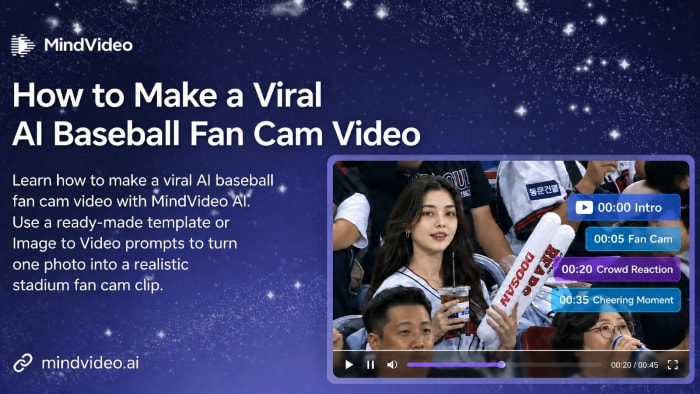
AI Baseball Fan Cam Videos are quickly going viral on TikTok, Instagram, and YouTube. With AI technology, a regular photo can be turned into a video that looks like a real baseball stadium fan cam: the camera sweeps across the crowd, focuses on the subject, shows the person on the stadium big screen, and surrounds the scene with lights, cheers, and the energy of a live game. A successful AI Baseball Fan Cam Video is not just about adding a “baseball stadium background.” It needs to feel like a real fan cam catching a highlight moment.
You don't need to attend a baseball game, film real footage, or manually edit complex clips to create this video. With MindVideo’s AI Baseball Fan Cam Video Generator, you can either use the Baseball Fan Cam Video template for one-click generation, or use Image to Video with prompts to customize the fan cam effect you want.
Make a Baseball Fan Cam Video with the AI Video Effect
If you want the fastest way to create a Baseball Fan Cam Video, we recommend using the AI Baseball Fan Cam Video template. This method does not require prompts or extra settings. You only need to choose the fan cam effect, upload an everyday photo, and the template will automatically generate a baseball stadium big-screen interaction video. For users who want to quickly join the AI baseball fan cam trend, the template is faster, easier, and more stable.
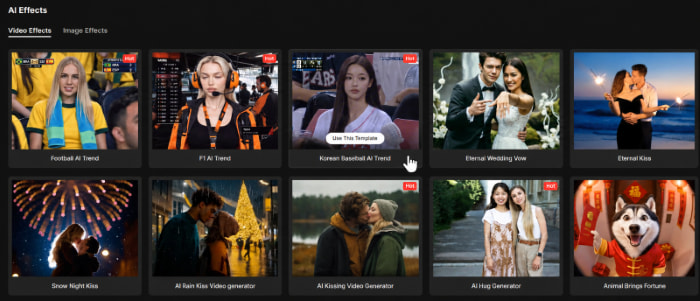
Step 1: Choose the Baseball Fan Cam Video Template
Go to the MindVideo AI video effect center and find the Baseball Fan Cam Video template. You can choose the right aspect ratio based on where you plan to post the video. If you want to publish it on Instagram or TikTok, choose the 9:16 vertical version. If you want to post it on YouTube, you can choose the 4:3 version. The template already includes key visual elements such as the baseball stadium, crowd seats, camera movement, stadium big screen, and live-game atmosphere. Once you select the template, you can move directly to uploading your image and generating the video.
Step 2: Upload Your Photo
Upload the image you want to turn into a video. You can use a selfie, a casual everyday photo, or an artistic portrait. You don't need to edit the photo into a Baseball Fan Cam style in advance. Just make sure the subject is clearly visible. For a more natural and stable result, we recommend using a front-facing half-body or full-body photo. The person’s face should not be covered, so the AI can clearly recognize facial features and keep the subject consistent during video generation.
The image itself should also be clear, and the background should not be too complicated. The higher the photo quality, the more stable the AI-generated facial expression, motion, and fan cam effect will usually be.
Step 3: Generate the Fan Cam Video
After uploading your image, click generate. The biggest advantage of this method is that no prompt is required. Our AI template automatically turns the image into a baseball fan cam-style video: the camera focuses on the subject, the person appears seated in the baseball stadium crowd, and the shot feels like they have been captured by a live broadcast camera. The AI adds natural movement, including a slight head turn, smile, wave, while keeping the stadium seats, scoreboard, lights, and broadcast atmosphere. You only need to wait for the result and preview it on the right side. If you are happy with the video, you can download it and post it on any short-form video platform. You can also add a short caption, such as “POV: You got caught on the baseball fan cam” or “AI made me the main character at a baseball game.”
Create a Custom Baseball Fan Cam Video with Image to Video
If you don't just want a fixed effect and would rather control more details, such as the subject’s reaction, camera movement, stadium atmosphere, visual style, or a more story-driven AI Baseball Fan Cam Video, you can use our Image to Video tool. Compared with the Baseball Fan Cam Video template, Image to Video depends more on the prompt, the uploaded image, and the model’s understanding, so the result may be less stable. The advantage is clear, though: you can use prompts to customize the video and make the result match your creative idea more closely.
Step 1: Upload Your Image
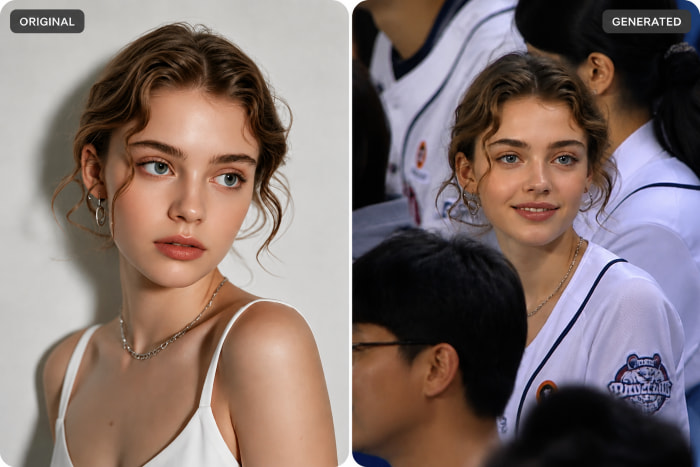
First, open MindVideo AI’s Image to Video tool and upload the image you want to turn into a video. As with the template method, we recommend choosing a high-quality image where the subject is clear and the facial features are visible. For a more stable result, it is better to first turn the original image into a Baseball Fan Cam-style image. Many Image to Video models treat the uploaded image as the first frame of the video. If the first frame already looks like a baseball fan cam scene, with the person seated in the crowd, wearing baseball-style clothing, surrounded by fans and stadium lights, the AI will usually keep the scene more consistent and the subject less likely to drift.
You can use the prompt below to turn your original image into a Baseball Fan Cam-style image:
Use the reference image as identity verification. Preserve the authenticity of the subject’s face, hair, skin texture, and proportions. Do not beautify or stylize. Create an ultra-realistic live baseball broadcast frame showing [uploaded character] accidentally caught on camera in the stands. The subject is [seated among a bustling crowd of fans], holding [an iced drink/a cheering stick/cheering flag/no item], and wearing [a clean baseball jersey]. He/She notices the camera and shows [a natural smile, slightly surprised but calm]. Use the look of a realistic live TV broadcast camera: telephoto compression, subtle video softening, slight motion blur in the crowd, stadium lighting, natural skin texture, slightly imperfect candid composition, and TV broadcast aspect ratio.
You can replace the bracketed parts based on your image:
● [uploaded character]: describe the person, such as “the woman in the uploaded image” or “the man in the reference photo”
● [seated among a bustling crowd of fans]: describe the pose, such as sitting in the stands or standing in the crowd
● [an iced drink/a cheering stick/cheering flag/no item]: describe the object in hand, or use no item
● [a clean baseball jersey]: describe the outfit, such as a baseball jersey, T-shirt, hat, or sunglasses
● [a natural smile, slightly surprised but calm]: describe the expression, such as a natural smile, surprise, shyness, or excitement
After that, upload the Baseball Fan Cam-style image into Image to Video. This usually makes the video more stable and closer to a real baseball broadcast fan cam shot.
Step 2: Enter a Baseball Fan Cam Prompt
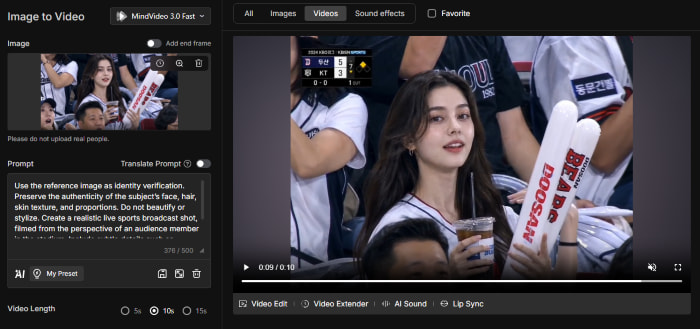
Enter your prompt. A good prompt is not necessarily the longest one. The goal is to make the AI clearly understand that it should create a fan cam moment from a real sports broadcast, not just a generic baseball-themed video. A complete Baseball Fan Cam Video prompt usually includes subject identity preservation, stadium background, crowd atmosphere, facial expression and movement, camera motion, broadcast texture, and output format.
You can use the structure below and adjust it based on your image and desired action:
Use the reference image as identity verification. Preserve the authenticity of the subject’s face, hair, skin texture, and proportions. Do not beautify or stylize.
Background: [Crowded stadium seats, cheering fans, bright stadium lights, and slightly blurred LED screens.]
Environment: [A lively and passionate baseball match with an electric atmosphere. The background audience is very active, cheering, clapping, waving team towels or cheer sticks. Plastic seats; surrounding fans wear brightly colored team jerseys. The background is slightly out of focus; realistic stadium lighting; slight haziness in the image due to broadcast compression.]
Subject: [Uploaded character sitting in the baseball stadium stands watching the game. The character realizes he/she is being filmed, looks directly at the camera, and gives a brilliant, beaming smile. He/She makes eye contact with the camera and enthusiastically raises the hand to [make a “V” for victory]. The body language is energetic, relaxed, and joyful. The crowd in the background is celebrating and cheering.]
Mood: [Exciting, joyful, and classic interactive jumbotron fan-cam moment. Full of energy, captured authentically for a live sports broadcast. No cinematic or dramatic effects, pure TV broadcast entertainment.]
Camera: [Telephoto broadcast lens (120-150mm). Zooming in from a distant elevated camera, focused on the subject. Strong image compression and shallow depth of field. Camera is at eye level, tilted slightly upward. Broadcast-grade stabilizer eliminates minor shake.]
Details: [Direct eye contact with the camera. Realistic skin texture, no smoothing. Background crowd is slightly motion-blurred. In the corner, a blurred broadcast score graphic or “LIVE” indicator is visible.]
Output: A single continuous live sports broadcast shot, with no cuts.
Focus on these parts when customizing the prompt:
● Background: describe the stadium, seats, lights, screens, scoreboard, and other background elements
● Environment: describe the live atmosphere, such as cheering, clapping, waving cheer sticks, or fans wearing jerseys
● Subject: describe the subject’s action and expression, such as smiling at the camera, waving, clapping, drinking water, brushing hair back, making a heart gesture, or giving a thumbs-up
● Camera: describe the camera language, such as long-distance zoom, broadcast shot, shallow depth of field, and light compression
● Details: add realism, such as skin texture, slight motion blur in the background, a LIVE indicator, or score graphics
● Output: ask for one continuous shot to avoid jump cuts or disconnected scenes
If you want a more customized, funny, or exaggerated version, add more specific details to the subject’s movement and expression.
Step 3: Choose the Model and Video Settings
After entering the prompt, choose the right video model and generation settings. MindVideo AI offers multiple AI video models, including MindVideo, Seedance, Kling, Veo, and more. Different models may vary in subject consistency, motion quality, camera understanding, and realism. When possible, choose a more advanced version of each model, such as MindVideo 3.0 or Seedance 2.0. Higher-end models are usually better for Baseball Fan Cam Videos, where the subject needs to stay consistent, the camera movement should feel natural, and the stadium atmosphere needs to look realistic.
Next, choose the resolution. Common options include 480P, 720P, and 1080P. If you are only testing a prompt, you can start with 480P. If you plan to publish the final video, 1080P is recommended for a clearer result.
Then set the Video Length. Depending on the model, the available duration is usually between 4 and 15 seconds. We recommend choosing the length based on prompt complexity. If you only need one simple action, 5-8 seconds is usually enough. If your prompt includes multiple actions or several emotional shifts, choose 10 seconds or longer so the AI has enough time to complete the transitions.
Finally, set the aspect ratio. You can choose flexibly based on your platform, such as 9:16, 16:9, 4:3, or 3:4. Most of our users choose 9:16 or 4:3.
Step 4: Generate, Preview, and Download
After setting the model and other parameters, click generate. MindVideo AI will create the video based on your uploaded image, Baseball Fan Cam prompt, and selected settings. Generation time depends on the model and video length, but results usually appear within 2-6 minutes.
Once the video is ready, preview it and check whether the subject stays consistent, the face looks natural, the movement matches the prompt, the camera has a real fan cam push-in feel, and the background includes the stadium crowd, lights, scoreboard, and live-game atmosphere.
Best AI Baseball Fan Cam Video Prompt Templates
If you use Image to Video to create a custom Baseball Fan Cam Video, you can copy the prompt templates below directly. These prompts do more than describe a “baseball stadium.” They use identity preservation, live broadcast camera language, crowd details, subtle character movement, broadcast compression, and score graphics to make the video feel closer to a real sports fan cam moment.
When using them, replace the bracketed parts, such as [KBO], the character’s action, handheld object, jersey, and score information. If you do not have the rights to use real leagues, teams, logos, or broadcaster names, replace them with fictional details.
Prompt 1: Classic Baseball Broadcast Fan Cam
This prompt is suitable for a classic baseball broadcast cut-in shot: the subject sits in the crowd, gets captured by the live broadcast camera, looks slightly surprised, then smiles and waves a cheering flag.
Use the reference image as identity verification. Preserve the authenticity of the subject’s face, hair, skin texture, and proportions. Do not beautify or stylize. Create a realistic, cinematic [KBO] live broadcast cut-in shot, filmed from the perspective of a stadium audience member: medium-close shot, slightly low angle, shallow depth of field, with the warm floodlights of the field. [Uploaded character] is sitting in the stands wearing a baseball jersey, holding a cheering flag. The head is slightly tilted. Upon noticing being captured by the live TV broadcast camera, he/she shows a slightly surprised expression, then smiles and waves the cheering flag at the camera. The camera moves slowly and naturally; in the background, blurred spectators are also wearing baseball jerseys. Overlay realistic live baseball broadcast graphics: [KIA 2 vs Heroes 3, bottom of the sixth inning, 0-2 count, batter Kim Hae-seong, pitcher Yoon Young-cheol, sponsored by Shinhan SOL Bank]. Present a realistic TV broadcast image in HD quality. Generate appropriate background music and sound effects.
Prompt 2: Iced Cola Fan Cam Moment
This prompt is better for a natural, everyday fan cam effect. The subject is not posing on purpose. They are watching the game, get caught on camera, smile naturally, and take a small sip of cola.
Use the reference image as identity verification. Preserve the authenticity of the subject’s face, hair, skin texture, and proportions. Do not beautify or stylize. Create a realistic live sports broadcast shot, filmed from the perspective of an audience member in the stadium. Include subtle details such as blinking, breathing, slight posture shifts, shallow depth of field, handheld camera shake, autofocus breathing effect, realistic TV compression artifacts, and natural spectator movement. [Uploaded character] is sitting in the stands wearing a baseball jersey and watching the game, holding a cup of iced cola and focusing on the match. Then, after noticing being captured by the live TV broadcast camera, the character smiles and takes a small sip of cola while looking toward the camera, accurately recreating the authenticity of a live sports event broadcast.
Prompt 3: Baseball Fan Cam with Pet
This prompt is great for a cute, highly shareable version. The subject holds a pet in the stands, gets unexpectedly captured by the broadcast camera, then lifts the pet’s paw to wave hello.
A realistic video shot from the perspective of a fan at a [KBO] stadium. Use the reference image for identity verification, preserving the authenticity of the subject’s face, hair, skin texture, and proportions. [Uploaded character] is sitting in the stands surrounded by a bustling crowd, holding his/her pet teddy dog in the arms, wearing a baseball jersey, and watching a live [KBO] game. The character is unexpectedly captured by the live TV broadcast camera, with a slightly surprised expression on the face. The character then breaks into a smile, gently lifts one of the dog’s paws to wave hello, and shifts the gaze back to the field. The LED screen is blurred. Shot with a telephoto lens, shallow depth of field, slight motion blur, and broadcast-level compression to create a cinematic sense of realism. The character blinks gently, breathes naturally, with slight head movement, and the hair subtly moves with the stadium breeze. The surrounding fans are waving cheering towels, the LED scoreboard glows softly, there are visible broadcast compression artifacts, and slight handheld camera shake. The scene authentically captures the “caught-on-camera” moment of this person at the stadium, sparking a viral moment online. No posing or direct eye contact with the camera.
Prompt 4: Natural Candid Stadium Fan Cam
This prompt is better if you want a more realistic result. The subject is aware of the camera but does not pose deliberately, making the action feel like a natural candid moment from a real game.
Use the reference image as identity verification. Preserve the authenticity of the subject’s face, hair, skin texture, and proportions. Do not beautify or stylize. Create a realistic live broadcast scene of the [KBO] league. [Uploaded character] is casually seated in the packed stands of a [Korean] baseball stadium, wearing a [KBO] team jersey. The subject is aware of the camera but is not posing deliberately. Capture a natural, slightly surprised expression with lips slightly parted, eyes not looking directly at the lens, but rather focused on the baseball field, and then the subject brushes the hair back with the hand. Skin texture should appear natural, with a subtle glow under the stadium lights and visible pores. Surrounding fans are slightly blurred, waving cheering sticks, holding drinks and phones, and singing fan songs. Use a telephoto lens compression effect, shallow depth of field, and motion blur of the crowd. The image should show slight TV broadcast noise and grain, with cinematic color grading. Display a real-time [KBO] score graphic on the lower third of the screen, showing team logos, innings, scores, pitch count, base runner indicators, and broadcaster watermark. Strive for documentary-like realism and a natural, dynamic candid effect.
How to Customize These Prompts
To make the result fit your image and creative idea better, adjust these parts:
● [KBO]: replace it with the baseball league style you want, or use a fictional baseball league
● Handheld item: change it to iced cola, cheering flag, team towel, phone, baseball glove, or no item
● Action: change it to smiles and waves, makes a V sign, takes a sip of cola, claps, brushes hair back, or cheers with the crowd
● Expression: change it to slightly surprised, shy smile, excited smile, calm and natural, or joyful reaction
● Camera: keep phrases like telephoto lens, shallow depth of field, TV compression artifacts, and handheld camera shake, because they help create a real broadcast feel
If you want a more stable result, start with simple actions such as smiling, waving, drinking, or turning toward the camera. The more complex the action is, the more it depends on model understanding and video length.
Template vs. Image to Video: Which Method Should You Choose?
|
Method |
Best For |
Advantages |
Limitations |
|
Baseball Fan Cam Video Template |
Beginners who w |
